This landscape design fee calculator is an Excel workbook for building consistent project estimates from design scope, site area, complexity, planned revisions, site visits, travel miles, and other direct costs. It calculates billable hours, labor charges, travel fees, cost markups, and the total design fee for as many as 100 estimate rows.
The XLSX connects each job to editable assumptions for base hours, production time by area, hourly rates, included revisions, extra revision time, site visit time, complexity multipliers, mileage charges, direct-cost markup, and the fee-review threshold. A separate summary helps a landscape design business monitor estimate volume, fee totals, billable hours, approval status, and estimates requiring review.
How this workbook can help
- Build repeatable landscape design estimates from defined scope, area, complexity, revision, and site-visit inputs.
- Keep production hours, hourly rates, included revisions, travel charges, cost markup, and review limits in one assumptions sheet.
- Spot incomplete entries, assumption problems, and estimates that cross the configured fee-review threshold.
- Review total, average, sent, and approved fees alongside billable hours and design-scope totals.
What is in the file
How to get started
1. Review the assumptions
Open the Assumptions sheet and check each design scope, its base hours, area-based hours, hourly rate, included revisions, revision time, and site visit time. Also review the complexity multipliers, mileage rate, direct-cost markup, and fee-review threshold before using the calculated amounts.
2. Enter the project details
On Design Jobs, complete the yellow input cells for the estimate ID, customer, project, quote date, design scope, square footage, complexity, planned revisions, site visits, travel miles, other direct cost, and status. Use the provided drop-down choices where available.
3. Read the calculated fee
Review core design hours, extra revision hours, site visit hours, total billable hours, hourly rate, labor fee, travel fee, other cost charge, and total design fee. Investigate the Review Alert before sharing an estimate.
4. Evaluate the estimate portfolio
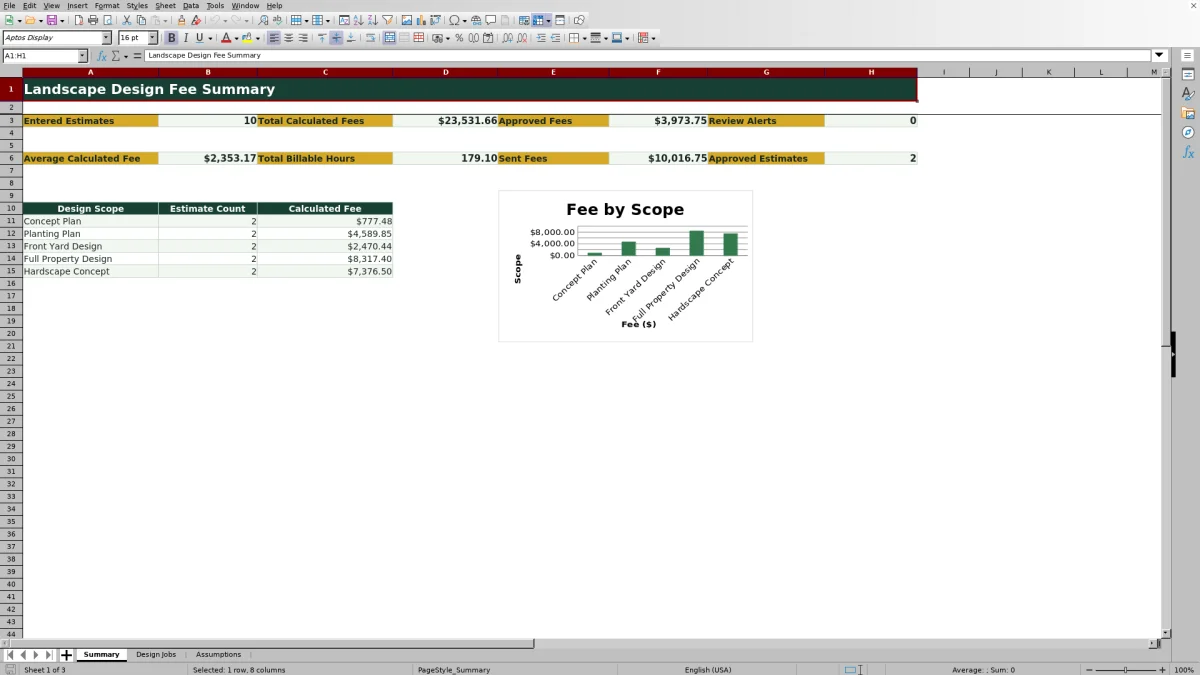
Use the Summary sheet to check entered estimates, total and average calculated fees, billable hours, sent and approved fees, approved estimate count, review alerts, and fee totals by design scope. Use those results to decide whether to revise inputs, adjust assumptions, or advance an estimate's status.
What the Landscape Design Fee Calculator Measures
Each estimate starts with a scope-driven estimate rather than a single flat price. The Design Jobs sheet combines the selected design scope with property area and complexity, then adds time for revisions beyond the included allowance and time for planned site visits. Travel miles and other direct costs are calculated separately so an operator can see how labor and project expenses contribute to the fee.
How the Excel Fee Calculation Works
Core design hours equal base hours plus area divided by 1,000 times the scope's area-based hours, with that subtotal adjusted by the selected complexity multiplier. Extra revision hours apply only when planned revisions exceed the included number, while site visit hours equal planned visits times the scope's hours per visit. Billable hours are multiplied by the scope-specific hourly rate. Travel and marked-up direct costs are then added to produce the Total Design Fee.
Practical Example for a Concept Plan
Situation: The fictional EST-2026-001 sample is a 2,500-square-foot Concept Plan with Standard complexity, one planned revision, one site visit, eight travel miles, and no other direct cost. Action: Using the displayed assumptions, the workbook calculates 3.625 core hours, no extra revision hours because one revision is included, and 1.5 site visit hours. Result: Billable time is 5.125 hours, and the $95 hourly rate produces $486.875 in labor, displayed as $486.88; the final fee also includes eight miles multiplied by the current travel-rate assumption. Interpretation: Most of this sample's fee comes from design and visit time, while travel remains sensitive to the mileage rate. Next decision: Confirm the travel assumption and review alert, then decide whether the estimate is ready to move beyond Draft status.
Common Errors and Solutions
A “Check inputs” alert means an estimate ID exists while one or more required cells from Customer through Status are blank; complete those entries before relying on the result. “Check assumptions” indicates that a required calculation or assumption is unavailable or invalid, so review the selected scope and the Assumptions values, including the hourly rate, travel rate, markup, and review threshold. “Review fee” means the total has reached or exceeded the configured threshold; verify scope, area, revisions, visits, mileage, and direct costs before sending it. If a drop-down entry is rejected, choose a value already listed on the Assumptions sheet or update the relevant assumption list carefully.
Comparison With Manual and Software Alternatives
The workbook is one complete estimating method: operators enter project details, apply centralized assumptions, calculate fees, check alerts, and review portfolio totals in the same XLSX. The following Comparison shows when it or an external approach may be more suitable.
| Method | Operating approach | Primary trade-off | More suitable when |
|---|---|---|---|
| Landscape design fee calculator workbook | Uses connected job, assumption, alert, and summary calculations for up to 100 prepared estimate rows. | Requires disciplined Excel entry and periodic review of business assumptions. | More suitable when a small landscape design operation wants transparent, repeatable estimating without adopting a broader software platform. |
| Paper form or manual calculator | Records scope and costs by hand and calculates each estimate separately. | Simple to carry, but totals, revisions, and portfolio reporting require manual work. | More suitable when estimate volume is very low and the operator only needs a one-time field calculation. |
| Blank spreadsheet | Starts without predefined formulas, validation, alerts, or assumptions. | Offers full customization but requires the business to build and maintain its own model. | More suitable when the company's pricing method differs materially from the workbook and an experienced spreadsheet user can maintain it. |
| Dedicated field-service software | May connect estimating with customer records, scheduling, dispatch, invoicing, or payments. | Provides a broader operating system but commonly requires setup, training, and ongoing fees. | More suitable when the company needs estimating integrated with wider field-service workflows and is prepared to manage the added system. |
Using Review Alerts Before Sending a Quote
The Review Alert column separates entry and assumption issues from high-value estimate review. An operator should first clear missing-input and assumption alerts, then inspect any fee at or above the configured review threshold. This creates a practical checkpoint for checking unusually large properties, complex scopes, extra revisions, repeated site visits, long travel distances, or substantial direct costs before the price is communicated to a customer.
Reading the Summary and Choosing the Next Action
The Summary sheet turns individual estimates into operating signals, including entered estimate count, total and average calculated fees, total billable hours, sent fees, approved fees, approved estimate count, and review alert count. It also reports estimate counts and calculated fee totals by design scope and charts those scope totals. A high alert count suggests the next action is data cleanup or assumption review, while a gap between sent and approved fees may prompt follow-up on outstanding proposals rather than an immediate pricing change.
Frequently asked questions
What project details does the landscape design fee calculator require?
For each estimate, enter an estimate ID, customer, property or project, quote date, design scope, area in square feet, complexity, planned revisions, site visits, travel miles, other direct cost, and status. The workbook uses these entries with the Assumptions sheet to calculate the fee.
How does the workbook account for revisions and site visits?
Each design scope has an included revision allowance, hours per extra revision, and hours per site visit. Only planned revisions above the included allowance add revision hours, while every planned site visit adds the configured visit time for that scope.
Can I change hourly rates and production assumptions?
Yes. The Assumptions sheet contains editable values for base hours, area-based hours, hourly rates, included revisions, extra revision hours, site visit hours, complexity multipliers, travel charges, direct-cost markup, and the fee-review threshold. Review changes before using them for customer estimates.
What do the review alerts mean?
“Check inputs” identifies incomplete job entries, “Check assumptions” identifies unavailable or invalid calculation dependencies, and “Review fee” flags a total at or above the configured review threshold. “Ready to review” indicates that the formula checks did not find those conditions, but the operator should still verify the estimate.
When is this Excel workbook more suitable than field-service software?
It is more suitable when a landscape design business primarily needs transparent fee calculations, editable pricing assumptions, review alerts, and basic estimate reporting in Excel. Dedicated software may be more suitable when estimating must connect directly with scheduling, dispatch, invoicing, payments, or a larger customer-management workflow.
Editorial responsibility

Nadia KesslerEstimates, customers and job workflows

Ethan ReedWorkbook QA, crews and business controls