This landscaping invoice template for Excel is an XLSX workbook for itemizing completed lawn care and landscaping services, calculating invoice totals, and presenting a selected invoice. It connects invoice records with service dates, descriptions, quantities, units, rates, customer names, and property or job-site details.
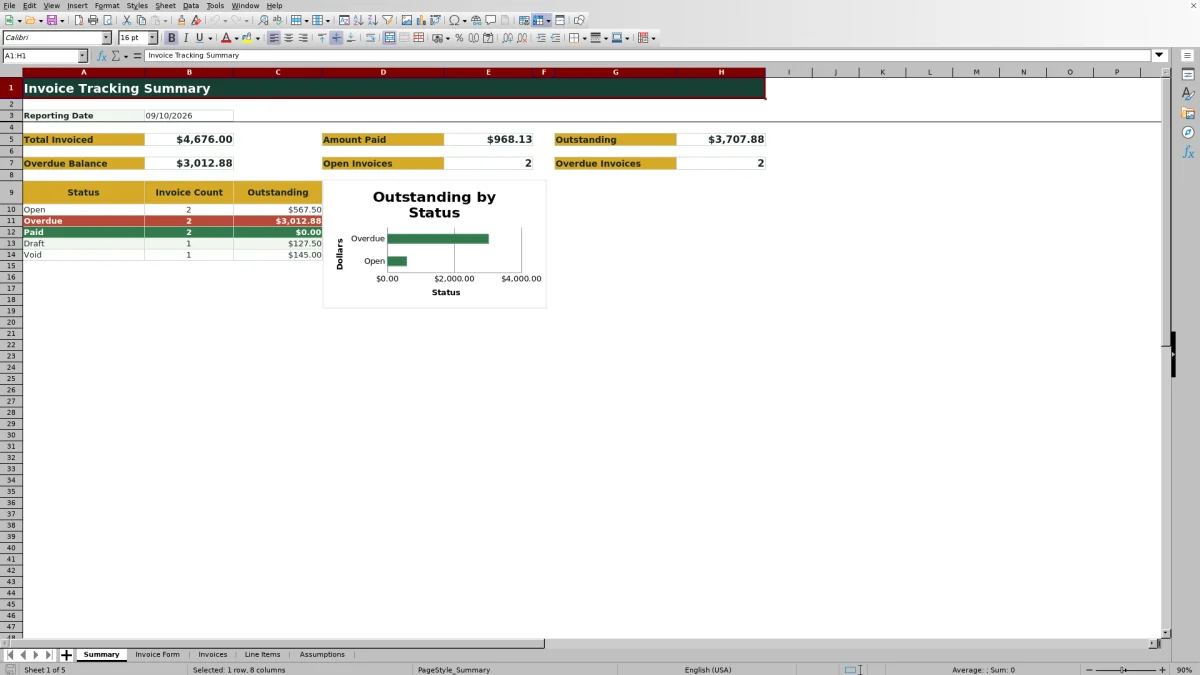
The workbook also calculates due dates, tax, balances, days past due, and payment status. A summary provides total invoiced, amount paid, outstanding balance, overdue balance, and invoice counts, while review prompts identify records that may need correction or follow-up.
How this workbook can help
- Connect customer, job-site, invoice, and service-line information through a consistent invoice number.
- Calculate line amounts, subtotals, tax, invoice totals, and balances without rebuilding formulas for each invoice.
- Monitor open, overdue, paid, draft, and void invoices using a configurable reporting date.
- Identify duplicate invoice numbers, missing information, unmatched line items, overpayments, and long-overdue balances for review.
What is in the file
How to get started
1. Set the business assumptions
Open the Assumptions sheet and replace the fictional company name. Confirm the reporting date, default payment terms, sales-tax rate, long-overdue threshold, service units, and default rates for your operation.
2. Create the invoice record
In Invoices, enter a unique invoice number, customer, property or job site, invoice date, stage, and taxable choice. Use the optional terms and tax-rate override fields when an invoice differs from the defaults.
3. Enter the billed services
In Line Items, assign each service row to the correct invoice number. Enter the service date, service, description, and quantity. The workbook retrieves the default unit and rate, while the rate-override field supports job-specific pricing.
4. Review, present, and track the invoice
Check the calculated totals and any Review Flag messages. Select the invoice number on Invoice Form to display its details and up to 12 matched service lines. Record the cumulative amount paid in Invoices, then use Summary to monitor balances and overdue work.
Situation: Turning Completed Landscaping Work Into an Invoice
Lawn care and landscaping invoices often begin with field notes, service dates, measurements, and agreed rates. When those details remain separated, the office may have to reenter work, manually total charges, or search for the correct payment terms before issuing an invoice.
This workbook uses the invoice number to connect each customer record with its billed service rows. That structure supports recurring maintenance, cleanup work, pruning, installation, inspection, hauling, and other services included in the editable service catalog.
Action: Build the Invoice From Connected Records
Start in Assumptions by confirming the company name, reporting date, payment terms, tax rate, aging threshold, and service pricing. Create the main record in Invoices, and then enter one row per billed service in Line Items using the same invoice number.
The service selection retrieves its default unit and rate. A rate override can be entered when a particular property, contract, or one-time job uses different pricing. The invoice register then sums all line amounts associated with that invoice number.
Result: Calculate Totals, Due Dates, and Payment Status
The workbook calculates each line amount by multiplying quantity by the applied rate. It totals the associated lines, applies tax when the invoice is marked taxable, and calculates the invoice total. The amount paid is subtracted without allowing the displayed balance to fall below zero.
The due date uses the invoice-level terms override when one is entered; otherwise, it uses the default terms from Assumptions. Draft and Void follow the selected stage. An issued invoice with no remaining balance becomes Paid, while one with a balance becomes Open or Overdue according to the reporting date.
Interpretation: Practical Landscaping Invoice Example
The fictional LFI-26002 record illustrates the workflow. It contains five cubic yards of mulch installation at the default rate of $72, producing $360, and two hours of shrub pruning at $68, producing $136. The resulting subtotal is $496. Because the invoice is marked non-taxable, its tax is $0 and its invoice total remains $496.
With $150 entered as the cumulative amount paid, the workbook shows a $346 balance due. The invoice date is August 5, 2026, and the 30-day default terms produce a September 4 due date. Against the September 10 reporting date, the invoice is six days past due. The result should be interpreted as a partially paid, overdue invoice that needs payment follow-up rather than as a pricing error.
Interpretation: Common Errors and Solutions
A Review Flag is a prompt for human review, not an automatic correction. If an invoice number is duplicated, assign a unique number and update its related line items. If the stage or taxable choice is missing, select an allowed value so the status and tax formulas can evaluate the record.
If an invoice reports no line items, confirm that its invoice number exactly matches the number used in Line Items. For a missing service, quantity, or rate, complete the input or update the service catalog. If the amount paid exceeds the invoice total, correct the cumulative payment entry. For a long-overdue warning, verify the reporting and due dates before deciding on customer follow-up.
Comparison: Workbook Method vs. Other Invoice Processes
The comparison below treats the connected workbook as one complete operating method rather than comparing its individual sheets with one another.
| Method | How it handles the work | More suitable when |
|---|---|---|
| This Excel workbook | Connects an invoice register, itemized service rows, default rates, calculated totals, payment status, review prompts, an invoice form, and a receivables summary. | More suitable when the office wants an Excel-based process for up to 100 invoice records and 100 total line-item rows without implementing a separate service platform. |
| Paper invoice form | Records charges by hand and relies on manual totaling, filing, balance tracking, and overdue follow-up. | More suitable when invoice volume is very low, computer access is limited, and manual recordkeeping is acceptable. |
| Blank spreadsheet | Provides a flexible grid but requires the operator to design formulas, validations, invoice links, status logic, and review checks. | More suitable when the business needs a one-off custom layout and is prepared to build and maintain its own controls. |
| Dedicated field-service software | May combine invoicing with mobile dispatch, scheduling, customer management, online payments, and transaction-level payment records. | More suitable when crews need integrated field operations or payment workflows that are not represented in this workbook. |
The workbook covers itemized billing and receivables monitoring, but it does not show dedicated fields for customer addresses, contact details, payment instructions, or individual payment transactions.
Next Decision: Confirm the Workbook Fits Your Billing Volume
Use the workbook when its invoice register, line-item capacity, service-rate catalog, tax controls, aging logic, and summary match the way your landscaping business bills customers. Replace all fictional records and verify tax treatment, rates, and terms before using the file for live work.
If an invoice needs more than 12 displayed service lines, review how it will appear on Invoice Form. If the operation needs more than 100 invoice rows, more than 100 total line-item rows, customer contact management, crew scheduling, or payment-transaction history, the next decision is whether to extend the spreadsheet carefully or evaluate dedicated field-service software.
Frequently asked questions
Can this Excel template calculate landscaping invoice totals automatically?
Yes. It multiplies each quantity by the applied rate, sums the matched line items, calculates tax when applicable, and returns the invoice total and remaining balance.
How does the workbook determine whether an invoice is overdue?
An invoice that is not Draft or Void and still has a balance becomes Overdue when its due date is earlier than the reporting date in Assumptions. The workbook also calculates days past due.
Can the workbook track partial customer payments?
Yes. Enter the cumulative amount paid in the invoice register, and the balance and payment status update automatically. The workbook does not maintain separate dates, methods, or records for individual payment transactions.
Can I change landscaping rates, payment terms, and tax settings?
Yes. Assumptions contains editable default service units, rates, payment terms, and a sales-tax rate. Individual invoices can override terms and tax rates, while individual service lines can override rates.
How many invoices and line items can the template hold?
The validated entry areas contain 100 invoice rows and 100 total line-item rows. The Invoice Form displays up to 12 matched line items for the selected invoice.
Editorial responsibility

Nadia KesslerEstimates, customers and job workflows

Ethan ReedWorkbook QA, crews and business controls