This mulch installation estimate Excel workbook turns property measurements and job inputs into an itemized customer estimate. It calculates mulch quantity, material cost, labor cost, delivery cost, direct cost, markup, customer price, gross profit, and price per square foot.
The XLSX is designed for lawn care and landscaping operators who need a consistent estimating process across multiple customers and properties. Yellow cells identify editable entries, while formulas, dropdown lists, input validation, and a Summary sheet help organize estimates from Draft through Accepted or Declined.
How this workbook can help
- Build estimates from the same quantity, cost, delivery, waste, and markup assumptions instead of recreating calculations for each property.
- See direct cost, customer price, gross profit, and price per square foot before sending or accepting an estimate.
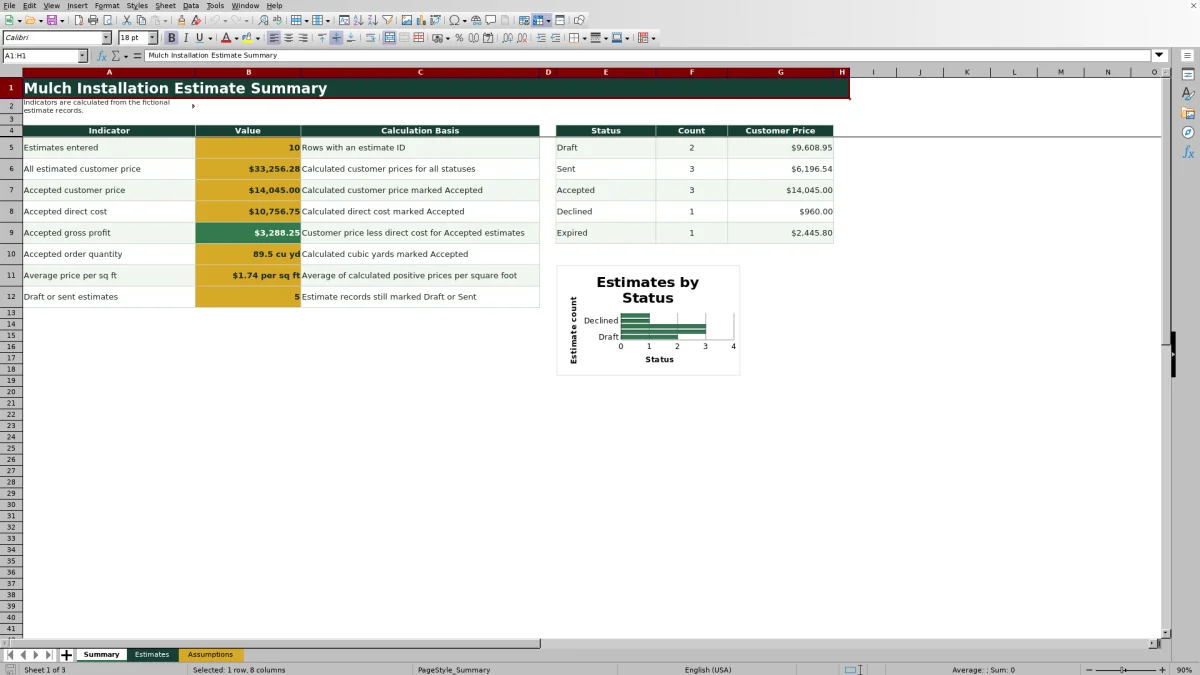
- Track Draft, Sent, Accepted, Declined, and Expired estimates while reviewing customer-price totals by status.
- Maintain mulch rates, crew choices, pricing assumptions, and validation limits in one assumptions area.
What is in the file
How to get started
1. Review the operating assumptions
Open the Assumptions sheet and confirm mulch costs per cubic yard, labor cost per crew hour, delivery charges, included mileage, extra mileage cost, default waste, default markup, order increment, statuses, crews, and input limits.
2. Enter the property and job details
On the Estimates sheet, use the editable yellow cells to enter a unique estimate ID, date, customer, property, bed area, depth, mulch type, crew assignment, crew hours, delivery miles, and status.
3. Apply overrides only when needed
Enter a waste or markup override when the individual job differs from the defaults. Leave an override blank when the estimate should use the corresponding assumption.
4. Review the estimate and choose a status
Check the calculated outputs, including order quantity, material cost, labor, delivery, direct cost, customer price, gross profit, and price per square foot. Then update the status and use the Summary sheet to monitor the sales pipeline.
From Site Measurements to a Customer Estimate
The estimating process starts with a real field situation: a customer needs mulch installed across a measured bed area at a specified depth. The operator records those details in one estimate row, selects a mulch type and crew, enters expected labor hours and delivery miles, and assigns the current sales status. The workbook then carries those inputs through quantity, cost, pricing, and profit calculations without requiring separate manual worksheets for each stage.
How Quantity, Cost, and Customer Price Are Calculated
Base quantity is calculated from bed area and mulch depth using the quantity conversion value stored on the Assumptions sheet. The workbook increases that quantity by the applicable waste percentage and rounds it upward to the configured order increment. Its default-or-override logic uses the default waste and markup percentages when the corresponding estimate cells are blank, but it uses row-specific percentages when overrides are entered. Material cost is the rounded order quantity multiplied by the selected mulch rate; labor is crew hours multiplied by the hourly labor cost; and delivery is the base charge plus extra mileage charges beyond the included miles. Direct cost combines those three costs, customer price applies markup, and gross profit is customer price less direct cost.
Interpreted Practical Example
Situation → action → result → interpretation → next decision: Situation: fictional estimate MX-26-002 covers 850 square feet at a 2-inch depth with Dyed Brown mulch, 10 crew hours, 10 delivery miles, a 0% waste override, and a 25% markup override. Action: enter those values and retain the Sent status. Result: at the listed $58 hourly labor assumption, labor cost is $580; delivery is $85 because 10 miles do not exceed the 10 included miles. If the rounded order quantity is Q cubic yards, material cost is $48Q, direct cost is $665 plus $48Q, customer price is 1.25 times direct cost, and gross profit is 0.25 times direct cost. Interpretation: labor is a known $580 portion of the job, while the final mulch quantity drives the remaining material variance. Next decision: review the calculated price per square foot and gross profit before following up, revising an input, or marking the estimate Accepted only after customer approval.
Common Estimate Errors and Solutions
A red estimate ID signals that the row needs human review because required inputs may be missing or the ID may be duplicated. Give every estimate a unique ID and complete the required measurement and pricing inputs. Blank calculated cells usually indicate that a dependent input is blank or invalid; select a valid mulch type, enter crew hours and delivery miles, and check the permitted limits on the Assumptions sheet. If a price appears unexpected, verify whether a waste or markup override is taking precedence over the default. Also confirm that percentages are entered as percentages and that delivery mileage reflects the actual trip basis used by the business.
Comparison With Other Estimating Methods
The complete operational method in this workbook combines estimate inputs, controlled assumptions, calculations, statuses, and management totals. The comparison below addresses the workbook as a whole rather than comparing its worksheets with one another.
| Method | How the workflow is controlled | More suitable when |
|---|---|---|
| This Excel workbook | Uses shared assumptions, validated inputs, formula-driven costs and prices, estimate statuses, and summary reporting in one XLSX. | More suitable when a landscaping operator wants a repeatable estimating process for up to 100 records and already works in Excel. |
| Paper form or manual calculator | Relies on handwritten measurements, separate rate references, and repeated calculations. | More suitable when only a quick field note is needed and no digital estimate tracking or consolidated reporting is required. |
| Blank spreadsheet | Allows flexible entry but requires the operator to build formulas, validation, assumptions, and summary logic. | More suitable when the business needs a fully custom model and has the time and spreadsheet knowledge to design and maintain it. |
| Dedicated field-service software | May connect estimating with customer records, dispatching, invoicing, payments, and mobile crews, depending on the product and subscription. | More suitable when integrated scheduling, routing, invoicing, mobile access, or multiuser workflow is more important than maintaining a standalone Excel file. |
Reading the Summary Before Sales Follow-Up
The status view shows counts and customer-price totals for the five statuses stored in the Assumptions sheet. Separate indicators report all estimated customer price, Accepted customer price, Accepted direct cost, Accepted gross profit, Accepted order quantity, average positive price per square foot, and the combined count of Draft or Sent records. A status may still be counted even when its price is blank, so operators should investigate incomplete rows before treating the summary as a final forecast.
Turning Results Into the Next Operating Decision
Use Draft and Sent counts to identify estimates that still need preparation or follow-up. For accepted work, review the calculated order quantity before purchasing mulch, confirm delivery distance, and use the assigned crew and entered crew hours as planning references. The workbook supports the estimating decision, but it does not automatically dispatch crews, create routes, issue invoices, or collect payments; those tasks remain manual or require an external field-service system.
Frequently asked questions
How does the Excel workbook estimate mulch quantity?
It multiplies bed area by installation depth, divides by the configured quantity conversion value, applies the default or overridden waste percentage, and rounds upward to the order increment stored on the Assumptions sheet.
What happens when the waste or markup override is blank?
A blank waste override uses the default waste factor, and a blank markup override uses the default markup percentage from the Assumptions sheet. Entering an override causes that estimate row to use the entered percentage instead.
Which costs are included in direct cost?
Direct cost includes material, labor, and delivery. Material uses the selected mulch rate and calculated order quantity, labor uses crew hours and the hourly labor cost, and delivery uses the base charge plus applicable extra-mile charges.
Why is an estimate ID red or a calculated result blank?
A red estimate ID indicates a possible duplicate ID or missing required input. A blank result generally means a dependent input is missing or invalid, so check the estimate ID, measurements, mulch type, crew hours, delivery miles, and assumption limits.
When is dedicated field-service software more suitable than this workbook?
Dedicated software is more suitable when the business needs integrated scheduling, dispatching, routing, invoicing, payments, mobile crew access, or concurrent multiuser workflows. This workbook is intended for structured estimate calculation and status reporting within Excel.
Editorial responsibility

Nadia KesslerEstimates, customers and job workflows

Ethan ReedWorkbook QA, crews and business controls