This landscaping change order Excel workbook provides a 100-row register for documenting scope, price effects, approvals, and revised totals. Lawn care and landscaping operators can record additions or deductions, quantities, prices, estimated costs, work dates, crew assignments, equipment assignments, and customer decision details.
The XLSX uses formulas to calculate each price effect, estimated cost effect, and revised contract total. Its Summary sheet reports open and approved activity, while the Assumptions sheet supplies dropdown options and the aging threshold used by review flags. This is an internal tracking workbook rather than a customer signature form.
How this workbook can help
- Keeps landscaping scope changes and related customer, property, scheduling, assignment, and approval details in one register.
- Shows how each addition or deduction affects price, estimated cost, and the revised contract total.
- Separates requested, under-review, approved, and declined orders so operators can monitor unresolved changes.
- Highlights selected missing, inconsistent, or aging records before work is scheduled or financial totals are reviewed.
What is in the file
How to get started
1. Enter the change request
Request details include a unique change order number, customer, property, request date, proposed work date, and a clear description of the changed landscaping scope.
2. Add the pricing and cost inputs
Commercial inputs include Add or Deduct, quantity, unit, unit price, unit cost, and the contract amount immediately before this change. The workbook then calculates the price effect, estimated cost effect, and revised contract total.
3. Record assignments and the decision
Decision details include the crew, equipment, approval status, applicable approval or decision date, and supporting notes. Use Requested or Under Review while the change is open, then update the record when a decision is made.
4. Review the register and summary
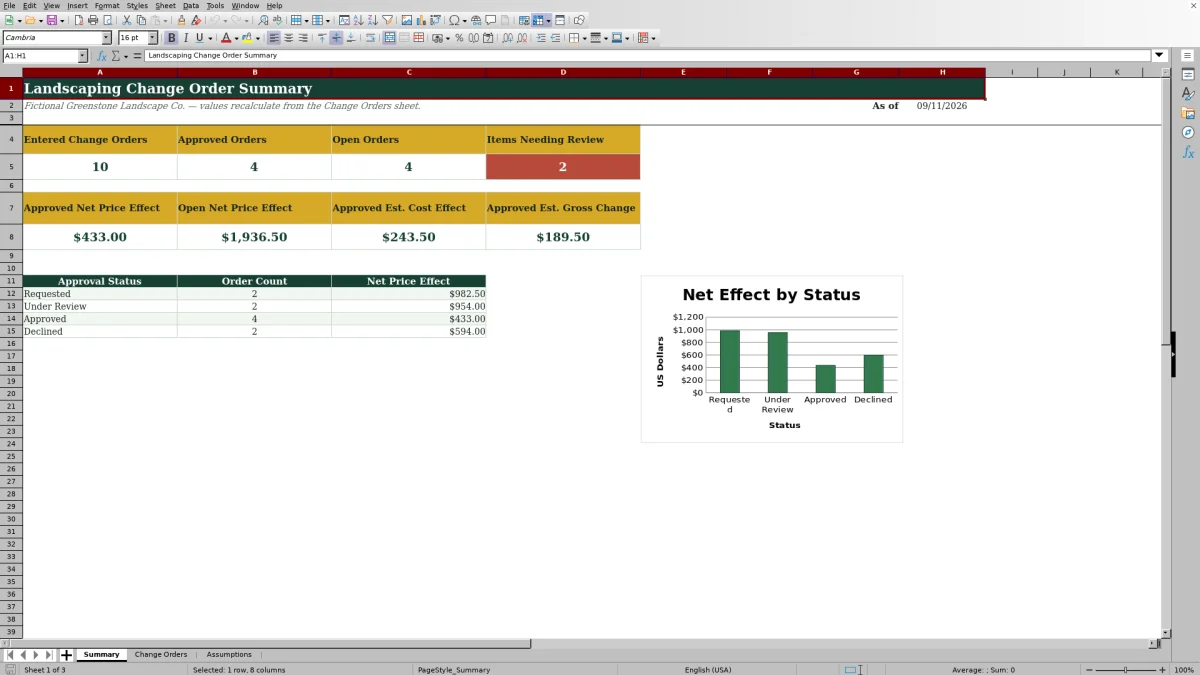
Review flagged records in the Change Orders sheet, correct missing or inconsistent information, and use the Summary sheet to monitor order counts and financial effects by status.
Situation: A Customer Changes the Landscaping Scope
A customer may ask for added mulch, fewer shrubs, extra pruning, or another change after the original landscaping price is established. Without a consistent record, the crew can perform work that does not match the approved scope or billing amount. Each register line should therefore identify the request and use the contract value before the change as its original contract amount.
Action: Document the Work and Its Financial Inputs
Enter the customer, property, dates, scope description, change type, quantity, unit, unit price, unit cost, and original contract amount. Select Add when the work increases scope and Deduct when work is removed. The workbook applies the selected direction to both the customer price effect and estimated cost effect, reducing the risk of manually reversing signs.
Result: Review Calculated Totals and Status Activity
The Price Effect equals quantity multiplied by unit price, with deductions shown as negative amounts. Estimated Cost Effect follows the same logic using unit cost, and Revised Contract Total adds the price effect to the original contract amount. The Summary sheet then groups counts and net price effects by Requested, Under Review, Approved, and Declined status.
Interpretation: A Practical Landscaping Example
In the fictional sample, 450 square feet of mulch is added at $1.85 per square foot with an estimated unit cost of $1.05. The original contract amount is $12,500, so the workbook calculates a $832.50 price increase, a $472.50 estimated cost increase, and a revised contract total of $13,332.50. The $360 difference appears in approved estimated gross change after approval. This means the approved change adds $832.50 to contract revenue while contributing an estimated $360 before other costs not represented in the unit-cost entry; the operator should still verify actual labor, material, and equipment costs.
Next Decision: Approve, Schedule, Revise, or Decline
Use the status and review flag together to determine the next step. Requested or Under Review work may need pricing confirmation or customer follow-up before scheduling. Approved work should have an applicable approval date and can be coordinated with the assigned crew and equipment. The default aging setting is seven days, and it can be adjusted in the Assumptions sheet from 1 to 365 days.
Common Errors and Solutions
Error: entering the contract value after the change instead of immediately before it. Solution: use the pre-change contract amount so the revised total is not overstated. Error: selecting Add for removed work or Deduct for added work. Solution: confirm the scope direction before reviewing the calculated amount. Error: assigning an approval date to an open status or leaving an approved record without a date. Solution: align the decision date with the selected status. Error: reusing a change order number or omitting required financial fields. Solution: use a unique number and resolve any message shown in the Review Flag column.
Comparison: Excel Workbook vs. Other Change Order Methods
The workbook functions as one operational method by combining the change register, add-or-deduct calculations, validation lists, review flags, approval tracking, summary metrics, and chart. The alternatives below may be more suitable when different recordkeeping or field requirements apply.
| Method | What it handles | More suitable when | Tradeoff |
|---|---|---|---|
| Landscaping change order Excel workbook | Maintains up to 100 change records, calculates price and estimated cost effects, tracks status and dates, flags selected issues, and summarizes financial activity. | More suitable when a landscaping operator wants a structured local register with transparent formulas and does not require built-in signatures or mobile dispatch. | Users must maintain the file, verify inputs, and manage customer authorization outside the workbook. |
| Paper change order form | Captures a written scope, price, and physical customer signature at the jobsite. | More suitable when immediate handwritten authorization or a physical project record is required. | Totals, status reporting, and portfolio-level tracking require manual work. |
| Blank spreadsheet | Allows a business to create entirely custom columns and calculations. | More suitable when the company needs a different data structure and has time to design and test formulas, validations, and reports. | It does not start with this workbook's formulas, dropdowns, review checks, or summary layout. |
| Dedicated field-service software | May connect change orders with mobile workflows, dispatch, customer communication, signatures, invoicing, and other systems. | More suitable when multiple field teams require connected mobile approvals, real-time scheduling, or software integrations. | It may involve licensing costs, configuration, training, and workflow changes. |
Choose based on approval requirements, crew size, field connectivity, reporting needs, and whether the business needs a register or a broader service-management system.
Frequently asked questions
How many landscaping change orders can the Excel template track?
The Change Orders sheet provides 100 entry rows, from row 5 through row 104. Calculated fields and applicable validation rules extend across that range.
How does the workbook calculate an addition or deduction?
For an Add entry, quantity multiplied by unit price produces a positive price effect. For a Deduct entry, the same calculation is shown as a negative effect. Estimated cost uses quantity and unit cost with the same sign logic.
What does Revised Contract Total mean?
Revised Contract Total equals the original contract amount immediately before the listed change order plus that order's price effect. Each row should use the correct pre-change contract value for that specific change.
Does the workbook include customer signature fields?
No. It records approval status and an approval or decision date, but it does not contain dedicated customer signature fields. Use a separate signed form or approval process when formal authorization is required.
Why does a change order show a review message?
The Review Flag formula checks populated records for selected issues such as missing required information, inconsistent open-status dates, aging open requests, or an approved status without an approval date. Review the row, correct the underlying entry, and confirm the administrative details with the appropriate person.
Editorial responsibility

Nadia KesslerEstimates, customers and job workflows

Ethan ReedWorkbook QA, crews and business controls