This lawn care estimate Excel workbook helps service businesses prepare and track customer estimates. Enter the customer, property, primary service, labor hours, and labor, materials, equipment, and other costs for each estimate.
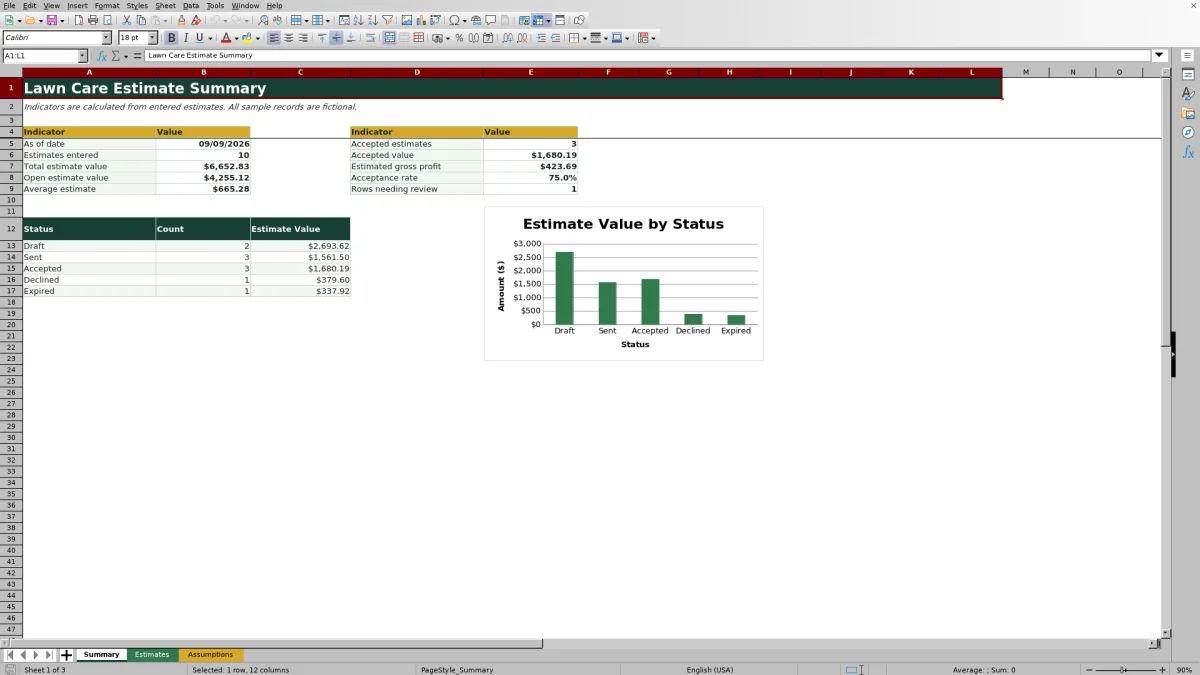
The XLSX retrieves service defaults from the Assumptions sheet, calculates direct cost and markup, and produces an estimate total. Its Summary sheet then reports open and accepted value, estimated gross profit, acceptance rate, average estimate, status totals, and rows requiring review.
How this workbook can help
- Build customer estimates with a consistent method for labor and other direct costs.
- Review direct cost, markup amount, and the customer estimate total on each record.
- Track Draft, Sent, Accepted, Declined, and Expired estimates from a summary view.
- Identify missing information and expired validity dates before deciding what to do next.
What is in the file
How to get started
1. Set up service and operating choices
Open the Assumptions sheet and review the service defaults, including scope unit, hourly labor rate, and default markup. Update the listed crew, equipment, and unit choices as needed.
2. Enter the estimate details
On the Estimates sheet, add an estimate ID, date, customer, property or site, primary service, status, quantity, assignments, labor hours, direct expense inputs, and a valid-through date where applicable.
3. Review the calculated price
Confirm the retrieved labor rate and markup. Check the calculated labor cost, direct cost, markup amount, and estimate total before sharing the estimate with the customer.
4. Resolve alerts and monitor outcomes
Use the Review Alert column to find missing status or service selections, sent estimates without a valid-through date, expired dates, or incomplete pricing. Update statuses as customers respond, then review the Summary sheet for the next sales decision.
Build a Consistent Lawn Care Pricing Workflow
Each row on the Estimates sheet represents one primary-service estimate. After the operator selects a service and enters labor hours and expenses, the workbook calculates labor cost and combines it with materials, equipment, and other costs as Direct Cost. It then applies the service's default markup to produce the customer total. This structure gives estimators a repeatable path from job scope to quoted price.
Use Service Assumptions Without Hiding the Inputs
The Assumptions sheet stores each service's scope unit, labor rate per hour, and default markup. It also holds selectable crew, equipment, status, and unit choices. These values are planning inputs, so an operator should review them before using the workbook. Quantity is descriptive: it records scope, but the pricing formulas do not multiply the total by quantity. Quantity-related work must be reflected in labor hours, materials, equipment, or other costs.
Practical Lawn Care Estimate Example
Situation: A fictional mulch installation estimate covers 8 cubic yards and requires 12 labor hours. Action: The workbook retrieves a $38 hourly labor rate and 35% markup, then combines $456 of labor with $360 of materials, $75 of equipment, and $30 of other costs. Result: Direct cost is $921, markup is $322.35, and the estimate total is $1,243.35. Interpretation: The price includes the entered direct costs plus the service-level markup, while the 8-cubic-yard quantity serves as scope information rather than a separate formula multiplier. Next decision: The operator can verify that the hours and costs reflect the site, then send the estimate or revise the inputs before changing its status.
Common Estimate Errors and Solutions
A blank status produces an “Enter status” alert; select one of the listed statuses. A blank service produces an “Enter service” alert; choose a service configured on the Assumptions sheet. A Sent estimate without a date produces Enter valid-through date; add a date on or after the estimate date. A past validity date prompts a review of the expired date. If pricing is incomplete, check the labor hours, service rate, direct expense entries, and calculated fields before sending the estimate.
Comparison With Manual and Software Alternatives
The complete workbook method combines assumptions, estimate entry, automatic calculations, review alerts, status tracking, and summary reporting in one XLSX. The comparison below considers that full process against realistic external alternatives.
| Method | Pricing and tracking approach | More suitable when |
|---|---|---|
| This Excel workbook | Uses service defaults, calculated costs and markup, review alerts, statuses, and summary indicators. | More suitable when a small lawn care or landscaping operation wants a structured, editable estimating process in Excel. |
| Paper form or manual process | Relies on handwritten calculations and separate follow-up notes. | More suitable when estimate volume is very low and work is performed without a computer at the point of entry. |
| Blank spreadsheet | Allows custom columns and formulas but requires the operator to design and maintain the workflow. | More suitable when the business needs an unusual pricing model and has the spreadsheet skills to build it. |
| Dedicated field-service software | May connect estimating with scheduling, dispatch, invoicing, payments, and customer communications. | More suitable when a larger operation needs integrated field and office workflows beyond an estimate workbook. |
Interpret the Summary Before Following Up
The Summary sheet reports estimates entered, total value, open value, average estimate, accepted count and value, estimated gross profit, rows needing review, and totals by status. Its acceptance rate divides Accepted estimates by Accepted plus Declined estimates, so Draft, Sent, and Expired records are not included in that ratio. Operators can use open value and review alerts to prioritize follow-up, then use accepted value and estimated gross profit for planning.
Know What the Estimate Does Not Measure
The workbook produces a planning estimate, not a record of actual job performance. Estimated gross profit is accepted estimate value minus accepted direct cost; it does not include unentered overhead, taxes, later changes, or actual field results. Review rates, markups, labor hours, and direct costs for local conditions and business requirements before presenting a price to a customer.
Frequently asked questions
How many estimates can I enter in the prepared workbook?
The Estimates sheet provides 100 prepared rows, from row 5 through row 104, with formulas, validation, filtering, and review alerts.
Does the quantity field automatically change the estimate total?
No. Quantity records the service scope but is not multiplied into the pricing formulas. Account for quantity-related work through labor hours, materials cost, equipment cost, or other cost.
How does the workbook calculate labor cost and markup?
Labor cost equals labor hours multiplied by the hourly labor rate retrieved for the selected service. Direct cost combines labor, materials, equipment, and other costs; the default markup is applied to that direct cost.
What causes a review alert?
An alert can appear when an entered estimate lacks a status or service, when a Sent estimate lacks a valid-through date, when that date has expired, or when the pricing inputs do not produce a total.
What does estimated gross profit mean on the Summary sheet?
It is the total value of Accepted estimates minus their direct costs. It is a planning indicator and does not account for unentered overhead, taxes, changes, or actual job costs.
Editorial responsibility

Nadia KesslerEstimates, customers and job workflows

Ethan ReedWorkbook QA, crews and business controls