This lawn care accounts payable tracker is an Excel workbook for recording supplier bills tied to materials, fuel, equipment, disposal, plant material, rentals, office costs, and other configured categories. It keeps invoice dates, due dates, approvals, job details, calculated amounts, and payment records in one XLSX file.
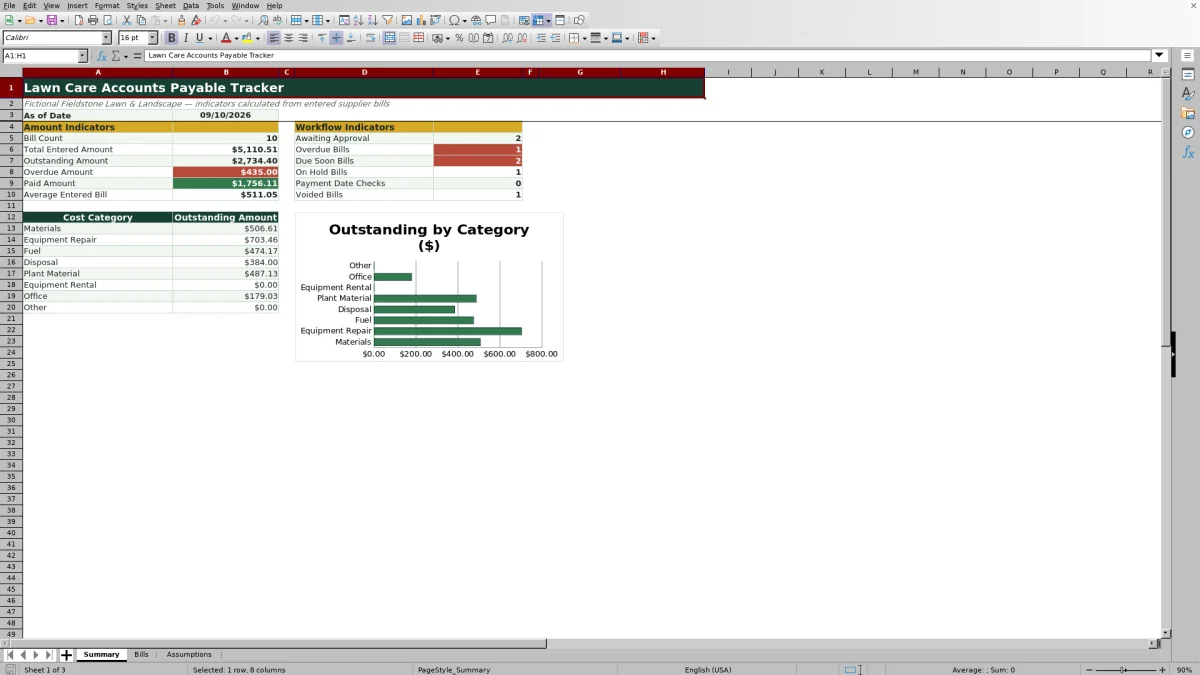
The workbook turns bill entries into payment decisions by calculating subtotals, total amounts, days to due, and review alerts. Its Summary sheet reports outstanding, overdue, and paid amounts alongside workflow counts, while the Assumptions sheet controls the due-soon window and available list choices.
How this workbook can help
- Keep supplier invoices, cost categories, properties or jobs, approvals, and payment details in one organized bill register.
- Calculate subtotals and total amounts automatically from quantity, unit cost, and tax or fees.
- Identify bills that are overdue, due soon, on hold, awaiting approval, rejected, voided, or missing required payment information.
- Review outstanding balances by cost category and use dashboard indicators to plan the next accounts payable action.
What is in the file
How to get started
1. Configure the workbook lists
Open the Assumptions sheet and review the seven-day due-soon window. Replace the fictional suppliers, cost categories, units, approval statuses, payment statuses, methods, and reviewers with choices used by your lawn care or landscaping operation.
2. Enter each supplier bill
Use the yellow input cells on the Bills sheet to enter a unique bill ID, supplier, invoice number, dates, cost category, property or job, description, quantity, unit cost, and tax or fees. The workbook provides 100 bill-entry rows.
3. Review approvals and due-date alerts
Select the approval status and reviewer, then check the calculated subtotal, total amount, days to due, and Review Alert. Correct rejected or incomplete records before scheduling payment.
4. Record payment activity and check the summary
Update the payment status, date, method, and reference as each bill moves through the process. Use the Summary sheet to review outstanding, overdue, and paid amounts and decide which approved bills require attention next.
What the Lawn Care Accounts Payable Tracker Does
The workbook supports the full operating path from supplier invoice entry through approval and payment recording. The Bills sheet captures the transaction, formulas calculate its value and timing, the Review Alert identifies the next issue to check, and the Summary sheet combines active records into accounts payable indicators. This structure is useful for lawn care businesses that purchase mulch, fuel, plants, repair services, rental equipment, disposal services, and office supplies for multiple properties or jobs.
Organizing Bills by Supplier, Category, and Job
Each bill can be assigned to a supplier, cost category, and property or job. These fields help an operator distinguish a mower repair from a plant purchase or fuel delivery while retaining the supplier invoice number and description needed for follow-up. The Summary sheet groups outstanding amounts by the cost categories configured on the Assumptions sheet, allowing the operator to see which types of unpaid costs are driving the current balance.
Interpreted Practical Example
Situation: The fictional sample register includes a commercial mower deck repair for three units at $145 each, with no added tax or fees. Action: The bill is entered as Equipment Repair, marked Approved, and given an Open payment status. Result: The workbook calculates a $435 subtotal and total, includes $435 in the outstanding amount, and assigns it to the Equipment Repair category. Interpretation: The amount represents an approved cash requirement that remains unpaid; if its August 29, 2026 due date passes while the qualifying status remains open, the date-based alert identifies it as overdue. Next decision: The operator can schedule payment, place the bill on hold with an appropriate status, or investigate the invoice before updating the payment record.
Common Entry Errors and Solutions
A blank subtotal usually means that the bill ID, quantity, or unit cost needed by the formula has not been entered; complete those fields and verify the calculated amount. A due date earlier than the invoice date or a payment date earlier than the invoice date conflicts with the workbook's date validation, so confirm the source invoice and correct the date. An Approval check or Review rejected bill alert means the approval workflow still needs attention. A Check payment date alert means a bill is marked Paid without a payment date; enter the actual payment date after confirming the transaction. If a cost is not appearing under the intended Summary category, verify that the Bills entry matches a configured category on the Assumptions sheet.
Comparison: Excel Tracker and Other Accounts Payable Methods
This Excel workbook functions as one complete operational method: staff enter bills, apply controlled statuses, review calculated alerts, record payments, and monitor the resulting totals. The alternatives below may be more suitable when their operating conditions apply.
| Method | How it handles the workflow | More suitable when |
|---|---|---|
| This Excel workbook | Combines a structured 100-row bill register, input validation, formulas, review alerts, configurable lists, summary indicators, and a category chart. | The business already works in Excel and needs a defined supplier-bill process without implementing a broader software platform. |
| Paper form or manual ledger | Records invoice and payment notes without automatic calculations, changing due-date alerts, or consolidated dashboard totals. | Bill volume is very low, one person maintains the records, and digital sharing or automated monitoring is unnecessary. |
| Blank spreadsheet | Provides an open grid but requires the operator to design fields, formulas, validations, status rules, and summaries. | The business has a highly specific process and someone can build, test, and maintain the spreadsheet logic. |
| Dedicated field-service software | May combine purchasing or accounting tasks with scheduling, customer records, crew activity, mobile workflows, or other integrations, depending on the product. | Accounts payable needs to connect directly with dispatch, field crews, customer management, or an accounting platform. |
The choice depends on bill volume, collaboration needs, software access, and the level of integration required. The workbook is designed for structured Excel-based tracking, not as a replacement for every accounting or field-service function.
Reading the Summary Indicators
The Summary sheet separates amount indicators from workflow indicators. Amount measures include bill count, total entered amount, outstanding amount, overdue amount, paid amount, and average entered bill. Workflow measures count pending approvals, overdue and due-soon bills, on-hold records, missing payment-date checks, and voided bills. Read the dollar totals together with the workflow counts: a small number of overdue bills can still represent a material cash obligation, while a high count of pending approvals may explain why bills are not ready to schedule.
Maintaining a Reliable Payment Routine
Review new bills for complete dates, quantities, costs, categories, and approval information before relying on the dashboard. Revisit the register on a consistent schedule because the as-of date and date-sensitive formulas use Excel's TODAY function. After payment, enter the payment date, method, and reference rather than changing only the status. This routine keeps the alert logic and Summary results aligned with the records entered by staff, while supplier statements and accounting records can still be used for reconciliation.
Frequently asked questions
What is a lawn care accounts payable tracker?
It is a structured record for monitoring supplier invoices, due dates, approvals, amounts, and payment activity. This Excel version also calculates bill totals, days to due, review alerts, and summary indicators.
How many supplier bills can this Excel workbook track?
The Bills sheet provides 100 prepared entry rows, running from row 5 through row 104. Formula columns, validation rules, and review-alert logic are applied across those rows.
Does the workbook calculate bill amounts automatically?
Yes. The subtotal is calculated from quantity multiplied by unit cost, and the total amount adds tax or fees when entered. Blank or incomplete source fields may leave a calculated result blank or require review.
How does the tracker identify overdue and due-soon bills?
The workbook compares each qualifying unpaid bill's due date with Excel's current date. The due-soon period comes from the Assumptions sheet and is set to seven days in the supplied workbook; approval and payment conditions also affect which Review Alert appears.
Can the supplier and status choices be customized?
Yes. The Assumptions sheet contains the supplier, cost category, unit, approval status, payment status, payment method, and reviewer choices used by the Bills sheet drop-down lists. Replace the fictional entries within the configured list areas with the choices used by your business.
Editorial responsibility

Nadia KesslerEstimates, customers and job workflows

Ethan ReedWorkbook QA, crews and business controls