This landscaping subcontractor payment tracker is an Excel workbook for recording approved lawn care and landscaping work, retainage, invoices, payment activity, and outstanding balances.
It links work records to subcontractor terms and payment entries, then calculates payable amounts, due dates, payment status, and review alerts. Yellow cells are intended for user input, and the included companies, properties, and transactions are fictional examples.
How this workbook can help
- Keeps approved landscaping work, invoices, retainage, and related payments connected through work and subcontractor IDs.
- Separates Posted, Planned, and Void payment records so only completed payments reduce work-item balances.
- Surfaces unpaid, partially paid, past-due, incomplete, and inconsistent records for follow-up.
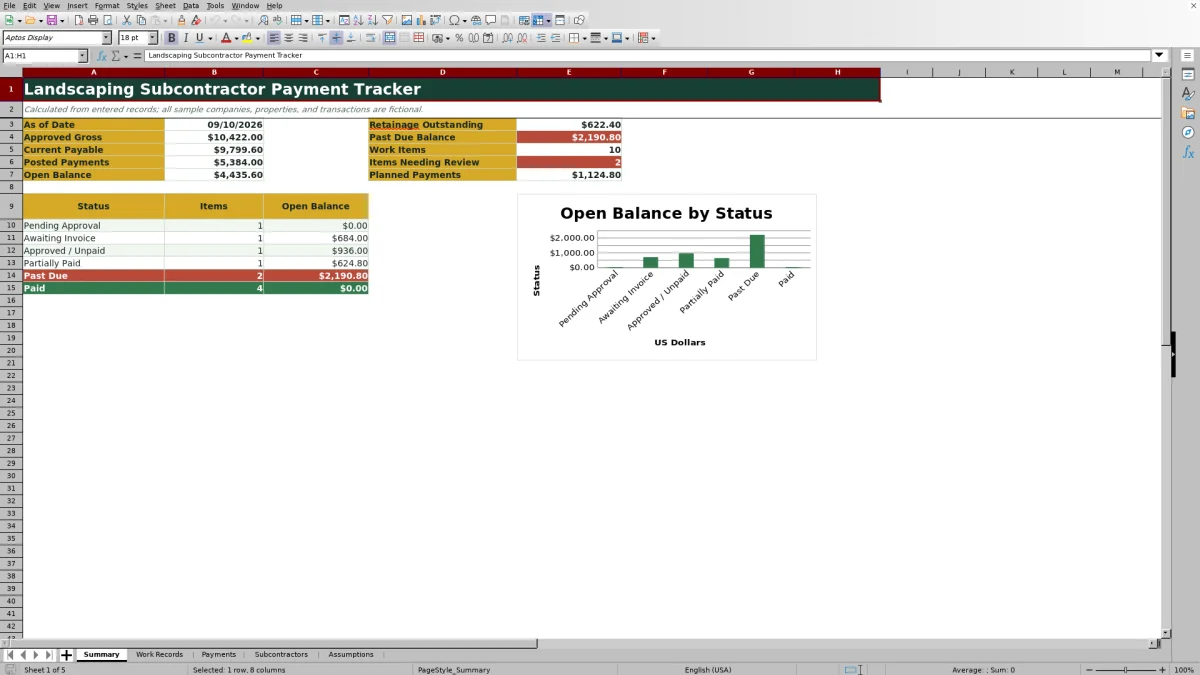
- Provides a current summary of approved gross, payable amounts, payments, open balances, outstanding retainage, and review items.
What is in the file
How to get started
1. Set up subcontractors and business lists
Maintain the source information. Enter each subcontractor's ID, company name, status, default retainage percentage, and payment terms on the Subcontractors sheet. Update stable service, operating-unit, payment-method, payment-status, and contractor-status choices on the Assumptions sheet.
2. Record approved work and invoices
Build the work record. On Work Records, enter a unique work ID, subcontractor ID, property or job, service, work date, quantity, unit, and unit rate. Add the approval date, invoice number, and invoice date when available, and use the override field only when the work item needs a retainage rate different from the subcontractor default.
3. Enter planned and completed payments
Match each payment to a work ID. On Payments, record a unique payment ID, payment date, work ID, method, amount, status, and reference. Mark a completed transaction Posted; use Planned for a scheduled payment and Void for a canceled record.
4. Review balances and alerts
Check the calculated results. Use the Summary sheet to review open balances, past-due amounts, outstanding retainage, planned payments, and items needing review. Resolve alerts on Work Records and Payments before relying on the totals for the next payment decision.
Follow the Work-to-Payment Workflow
Use one connected work-to-payment chain. Subcontractor defaults feed the work record, work IDs connect payment entries to approved work, and only payments marked Posted reduce the corresponding balance. This structure lets an operator trace a balance from the Summary sheet back to the work item, invoice, subcontractor terms, and individual payment records.
Track Retainage and Payment Terms
Each work item uses the subcontractor's default retainage rate unless a retainage override is entered. Retainage held equals gross amount multiplied by the applied rate, while current payable equals gross amount minus retainage held plus any retainage released. The workbook limits retainage rates to 0% through 50% and prevents an entered release from exceeding the amount held. Invoice date plus payment-terms days produces the due date used in payment-status reporting.
Interpreted Landscaping Payment Example
Situation → Fictional work record W-001 lists 60 hours of routine mowing at $45 per hour for a gross amount of $2,700, using subcontractor SC-001's 10% default retainage. Action → The workbook holds $270, calculates a current payable of $2,430, and connects the $2,430 Posted payment PAY-F001 to W-001. Result → Posted payments equal the current payable, so the balance due becomes $0 and the work status becomes Paid. Interpretation: the current invoice obligation is settled, but the unreleased $270 remains part of outstanding retainage. Next decision → Leave the release at $0 until it is authorized; after authorization, enter the release and schedule or post the related payment.
Common Errors and Solutions
Resolve alerts before review. If a subcontractor or work ID is not recognized, select an existing ID from the validated list or add the source record first. If a property, work date, approval date, invoice detail, payment date, amount, or status is missing, complete the field named by the alert. Correct an approval date that precedes the work date, keep retainage within the permitted range, and do not enter a retainage release greater than retainage held. For a payment linked to the wrong work item, replace the work ID so the calculated subcontractor information and balance update correctly.
Comparison With Manual and Software Alternatives
The workbook functions as one complete operational method: it maintains subcontractor terms, records approved work and invoices, applies retainage, connects payments, calculates balances, and summarizes follow-up needs. The appropriate method depends on transaction volume, field access, collaboration requirements, and the level of automation needed.
| Method | What it provides | When it is more suitable | Trade-off |
|---|---|---|---|
| This complete Excel workbook | Connected subcontractor, work, invoice, retainage, payment, alert, and summary records | The workbook is more suitable when an office team needs structured payment control in Excel for up to 100 prepared rows per core register. | Its fixed ranges and file-based workflow require controlled data entry and manual extension beyond the prepared rows. |
| Paper form or manual ledger | A physical record that can be completed without a computer | Paper is more suitable when field access is limited and the operation has very few transactions. | Totals, due dates, retainage, and payment matching must be calculated and reconciled manually. |
| Blank spreadsheet | An unrestricted grid for a custom list | A blank spreadsheet is more suitable when only a short, temporary list is needed and linked controls are unnecessary. | It does not start with this workbook's formulas, validation rules, status logic, review alerts, or connected registers. |
| Dedicated field-service software | Broader scheduling, dispatch, mobile, customer, and accounting integrations depending on the product | Dedicated software is more suitable when multiple crews need real-time mobile access, workflow permissions, dispatch tools, or system integrations. | It may require subscriptions, implementation work, configuration, and staff training. |
For a landscaping business already managing subcontractor approvals and payments in Excel, this workbook provides a defined process without claiming to replace crew scheduling, dispatch, or full accounting software.
Read the Summary and Work Statuses
The Summary sheet reports Approved Gross, Current Payable, Posted Payments, Open Balance, Retainage Outstanding, Past Due Balance, Planned Payments, work-item count, and items needing review. Work records move through Pending Approval, Awaiting Invoice, Approved / Unpaid, Partially Paid, Past Due, and Paid according to the entered dates, invoice details, payable amount, and Posted payments. The status table and chart show open balance by status, while TODAY() supplies the as-of date and supports past-due evaluation.
Understand Capacity and Ongoing Controls
Work Records, Payments, and Subcontractors each contain 100 prepared rows from row 4 through row 103, with formulas and validation applied across those ranges. Filters and frozen headings support routine review. Before entering records beyond row 103, extend the formulas, validations, filters, lookup ranges, payment ranges, and Summary calculation ranges consistently so new transactions are included in balances and alerts.
Frequently asked questions
Do Planned payments reduce a landscaping work balance?
No. Only payment records marked Posted are included in the work item's Payments Posted total and reduce its Balance Due. Planned and Void entries remain visible for review without reducing the balance.
How does the workbook choose a retainage rate?
If a work record contains a Retainage Override %, the workbook uses that rate. Otherwise, it looks up the subcontractor's Default Retainage % from the Subcontractors sheet.
When is a work item marked Past Due?
After the required approval and invoice information is present, a work item with a remaining balance is marked Past Due when its calculated due date is earlier than TODAY(). A fully paid current payable is classified as Paid before the past-due test is applied.
Can one work item have multiple payment records?
Yes. The workbook sums all Posted payment amounts that share the same work ID. This supports partial payments and multiple disbursements against one approved work item.
How many records are prepared in the Excel workbook?
The Work Records, Payments, and Subcontractors sheets each provide 100 prepared rows, covering rows 4 through 103. Additional rows require consistent extension of formulas, validation, filters, and calculation ranges.
Editorial responsibility

Nadia KesslerEstimates, customers and job workflows

Ethan ReedWorkbook QA, crews and business controls