The Landscaping Service Price Calculator for Excel is an XLSX workbook that helps lawn care and landscaping operators set service prices from labor, materials, equipment, overhead, and target margin. It calculates labor and equipment costs from editable rates, adds direct costs and overhead, and converts the total into a suggested customer price.
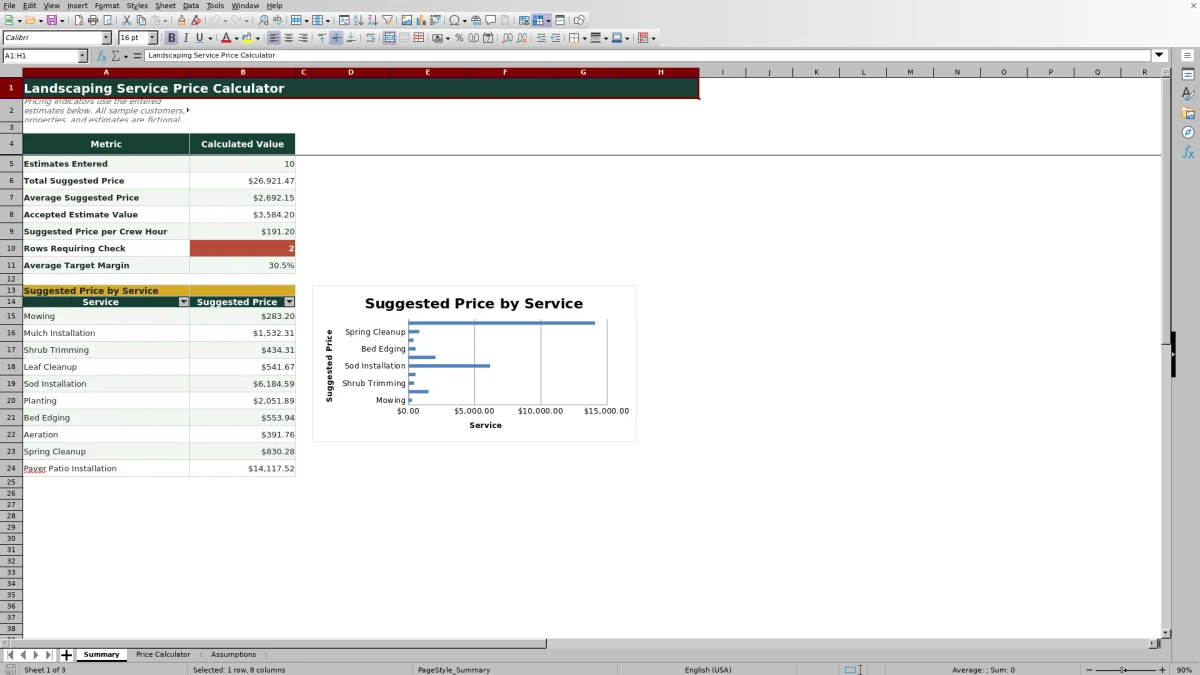
Use the yellow input cells to prepare up to 100 estimates, apply companywide assumptions or estimate-specific overrides, track each quote's status, and identify rows that need review. The Summary sheet then reports pricing totals, accepted estimate value, price per crew hour, average target margin, and suggested price by service.
How this workbook can help
- Account for labor, materials, equipment, other direct costs, and overhead before setting a landscaping service price.
- Apply a consistent target-margin calculation while retaining the option to override overhead or margin for an individual estimate.
- Catch missing inputs, unavailable rates, and percentages that reach the workbook's review thresholds before advancing a quote.
- Monitor total suggested prices, accepted estimate value, price per crew hour, average target margin, and service-level pricing from one summary.
What is in the file
How to get started
1. Review the pricing situation
Open the Assumptions sheet and replace the fictional examples with reviewed assumptions for labor rates, equipment costs, default overhead, target margin, and review thresholds.
2. Enter the estimate scope
On the Price Calculator sheet, enter the estimate ID, customer, property, date, service, quantity, and expected crew hours. Select services and equipment from the available dropdown lists.
3. Record the expected costs
Add materials cost, equipment hours, and other direct costs. Leave the overhead and margin override cells blank to use the defaults, or enter valid estimate-specific percentages.
4. Interpret the calculated result
Review labor cost, equipment cost, total cost, suggested price, and price per unit. Read the Review Alert cell and correct missing inputs, rates, or threshold issues before relying on the result.
5. Make the next pricing decision
Confirm that the calculated price fits the scope, update the status to Draft, Reviewed, Quoted, Accepted, or Declined, and use the Summary sheet to evaluate the estimate alongside the rest of the pricing pipeline.
Start with the landscaping pricing situation
A landscaping estimate can look profitable while omitting equipment time, small material purchases, or overhead. This workbook starts with the operating situation for each estimate: the service and quantity, required crew hours, materials, equipment use, other direct costs, and the pricing assumptions that should apply. Keeping those inputs together makes it easier to see what is driving the proposed price.
Build a suggested price from costs and margin
The Price Calculator multiplies crew hours by the service labor rate and equipment hours by the selected equipment rate. It adds those amounts to materials and other direct costs, then applies overhead to produce total cost. Suggested price is calculated by dividing total cost by one minus the target margin. This margin-based calculation differs from simply adding the same percentage as a markup because the target percentage is measured against the selling price.
Interpreted practical mowing example
Situation: The fictional mowing estimate covers 18,000 square feet, requires 2.8 crew hours, includes $12 in materials, uses a commercial mower for 1.8 hours, and has $8 in other direct costs. Action: At the example rates of $34 per crew hour and $32 per mower hour, labor is $95.20 and equipment is $57.60. Those amounts plus materials and other direct costs create a $172.80 direct-cost base; applying 18% overhead produces $203.90 in total cost before rounding. Result: Dividing that total by 72%, which is one minus the 28% target margin, produces a suggested price of $283.20. Interpretation: The $79.30 difference between the unrounded overhead-loaded cost and selling price represents a 28% margin on the sale, not a 28% markup on cost. For 18,000 square feet, the underlying unit price is about 1.57 cents per square foot, although the workbook's two-decimal currency format displays $0.02. Next decision: Confirm the scope and inputs, consider whether the customer-facing rate needs appropriate rounding, resolve any alert, and then move the estimate to Reviewed or Quoted when it is ready.
Correct common pricing errors
If required customer, property, date, service, quantity, or crew-hour fields are blank, complete those inputs before using the suggested price. If a labor or equipment rate is missing, verify the selected item and update its corresponding rate on the Assumptions sheet. If quantity is zero, enter a positive quantity to obtain a meaningful price per unit. When overhead or margin reaches a review threshold, confirm that the percentage is intentional rather than automatically lowering it. If calculated cells are blank, check the estimate ID and source inputs instead of typing over formula cells.
Comparison with manual pricing alternatives
The Excel workbook is one complete method that connects editable assumptions, estimate inputs, calculated prices, alerts, statuses, and summary reporting. The practical choice depends on estimate volume, customization needs, and whether pricing must connect to field operations.
| Method | Operational workflow | Tradeoff | More suitable when |
|---|---|---|---|
| Landscaping Service Price Calculator for Excel | Maintain rates and targets, enter estimate costs, review calculated prices and alerts, assign status, and monitor summary totals. | Provides a structured pricing process but does not include scheduling, dispatch, invoicing, or mobile crew management. | More suitable when the business wants an editable Excel-based pricing method with consistent formulas and summary reporting. |
| Paper form or manual calculator | Write down the scope and calculate each cost and price separately. | Requires little setup but offers no automatic formulas, validation, alerts, or consolidated reporting. | More suitable when estimates are rare, simple, and handled by one person without ongoing analysis. |
| Blank spreadsheet | Design columns, formulas, lists, checks, and reports from the beginning. | Allows a fully custom model but requires spreadsheet design, testing, and maintenance. | More suitable when the company has unusual pricing logic and someone who can build and maintain the formulas. |
| Dedicated field-service software | Connect estimates with customer records, scheduling, dispatch, mobile work, invoicing, and payments when supported by the selected platform. | Offers a broader operating system but may require subscriptions, setup, training, and process changes. | More suitable when pricing needs to be integrated with daily field-service operations and multiple users. |
For an operator whose immediate task is to standardize cost-based pricing, the workbook keeps the method visible and editable. A field-service platform is more suitable when the next decision must automatically trigger scheduling, dispatch, or billing.
Resolve review alerts before quoting
The Review Alert column checks whether an estimate ID and required inputs are present, whether assumptions and rates support the calculation, and whether applied overhead or target margin reaches the editable review thresholds. An alert is a prompt for judgment rather than a statement that the price is wrong. Correct missing data, verify unusual percentages, and review the result before changing the status to Quoted or Accepted.
Use the Summary for the next decision
The Summary sheet counts entered estimates and reports total suggested price, average suggested price, accepted estimate value, suggested price per crew hour, rows requiring a check, and average target margin. It also totals suggested prices across the 10 listed services and charts those service totals. Use that view to identify unresolved estimates, understand which services account for proposed revenue, and decide which assumptions or quotes need another review.
Frequently asked questions
How many landscaping estimates can the Excel workbook hold?
The Price Calculator provides 100 estimate rows, running from row 5 through row 104.
How does the workbook calculate a suggested service price?
It adds labor, materials, equipment, and other direct costs, applies the selected overhead percentage, and divides the resulting total cost by one minus the applied target margin.
Can overhead and target margin be changed for one estimate?
Yes. Leave the override cells blank to use the defaults from the Assumptions sheet, or enter estimate-specific overhead and margin percentages between 0% and less than 100%.
Why does an estimate show a Review Alert?
An alert can indicate a missing estimate ID or required input, a problem with an assumption or rate, or an overhead or margin percentage that reaches its review threshold. Check the row's inputs and the Assumptions sheet before using the price.
Does this workbook replace landscaping field-service software?
No. It is an Excel pricing and estimate-review workbook. Dedicated field-service software is more suitable when the business needs estimating connected to scheduling, dispatch, mobile crews, invoicing, or payments.
Editorial responsibility

Nadia KesslerEstimates, customers and job workflows

Ethan ReedWorkbook QA, crews and business controls