This landscaping bid comparison spreadsheet for Excel organizes proposals for a selected property or project. It helps landscaping business operators review scope, exclusions, price, and terms without relying on separate notes or inconsistent quote formats.
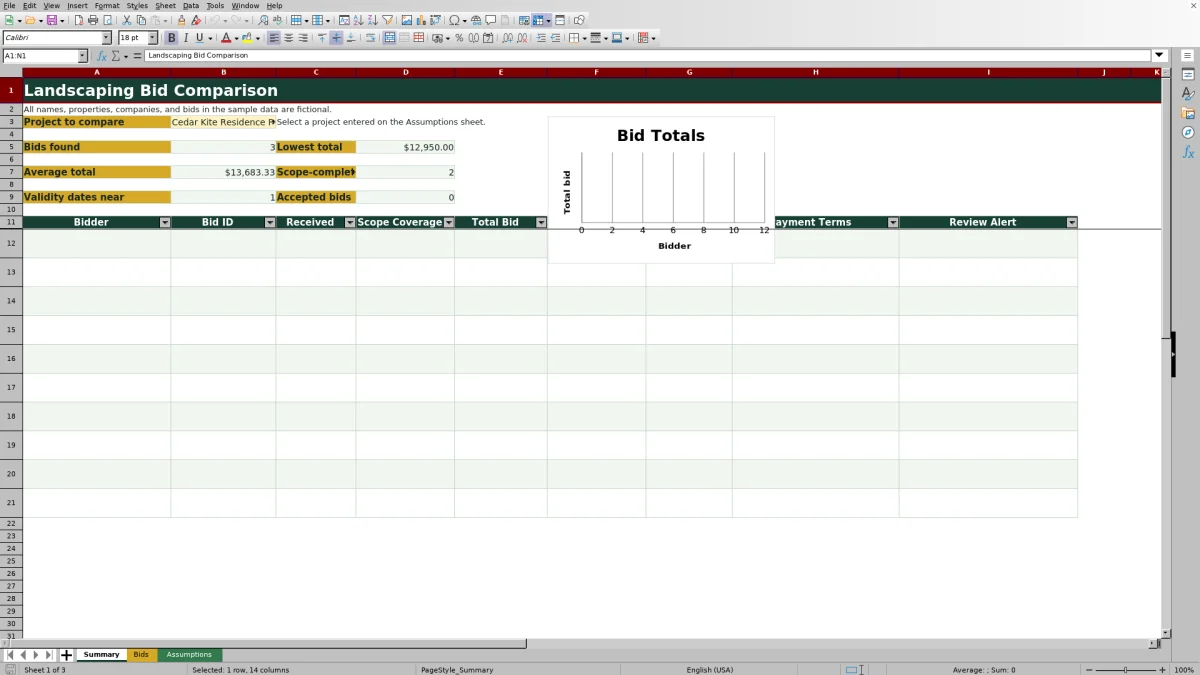
The XLSX includes Summary, Bids, and Assumptions sheets. It provides 100 bid-entry rows, project setup for up to 100 projects, calculated totals and scope coverage, administrative review alerts, a 10-row project comparison, and a chart for the first five displayed bidders. All included sample projects, properties, companies, and bids are identified as fictional.
How this workbook can help
- Keeps bidder details, scope summaries, exclusions, schedule information, payment terms, pricing, status, and notes in a consistent record.
- Uses each project's required scope-item count to calculate coverage and identify proposals that fall below the configured threshold.
- Shows base price, add-ons, discounts, calculated total, and price per unit so operators can evaluate more than the initial quoted amount.
- Supports project-level review through summary metrics, matching bid rows, filters, dropdown lists, conditional formatting, and administrative alerts.
What is in the file
How to get started
1. Set up the project
Open the Assumptions sheet and enter the project name, property label, required scope-item count, planned quantity, and unit. Set the minimum acceptable scope coverage and validity alert window. These entries establish the project baseline used by the bid formulas.
2. Enter each received bid
On the Bids sheet, start with a Bid ID and select the project. Record the bidder, dates, primary service, quantity, unit, included scope count, scope summary, exclusions, lead time, work duration, payment terms, base price, add-ons, discount, status, and notes in the editable cells.
3. Check calculations and alerts
Review the calculated required scope items, scope coverage, total bid, and price per unit. Address any review alerts for missing setup, missing dates or prices, negative totals, or scope gaps before comparing proposals.
4. Compare and make the next decision
Return to the Summary sheet and select the project. Review the bid count, lowest and average totals, scope-complete count, approaching validity dates, accepted-bid count, comparison rows, and bidder-total chart. Then update each bid's status as the review progresses.
Situation: Landscaping Quotes Arrive in Different Formats
One contractor may quote a low base price but list several add-ons, while another includes more work and requires a deposit. Dates, units, exclusions, and schedule details may also appear in different places. The workbook creates a comparable bid record by placing those details in consistent fields for each proposal.
Action: Standardize Project Requirements and Bid Inputs
Begin on the Assumptions sheet by defining the project's required scope-item count, planned quantity, and unit. Enter each proposal on the Bids sheet using the same categories for scope, exclusions, lead time, duration, payment terms, and pricing. The formulas then look up the project requirement, calculate coverage, add base price and add-ons, subtract discounts, and divide the total by quantity when a nonzero quantity is available.
Result: Review Calculated Outputs in One Project View
After a project is selected on the Summary sheet, the workbook reports bids found, lowest total, average total, bids meeting the scope threshold, validity dates within the configured alert window, and accepted bids. The matching rows show bidder, bid ID, received date, coverage, total, unit price, valid-through date, payment terms, and alert status, producing a decision-ready view for up to 10 displayed bids.
Interpretation: Practical Landscaping Bid Example
The fictional Cedar Kite project requires seven scope items and covers 8,500 square feet. FIC-BID-001 includes seven items and calculates to $13,500 from a $12,800 base price, $1,200 in add-ons, and a $500 discount, or about $1.59 per square foot. FIC-BID-002 starts with the lowest base price at $12,100, but $2,500 in add-ons raises its total to $14,600; its six included items produce about 85.7% coverage. FIC-BID-003 includes all seven items and calculates to $12,950 after a $1,000 discount, or about $1.52 per square foot. The result shows that the lowest base price was not the lowest total. FIC-BID-003 has the lowest calculated total and unit price in this sample, but its 15-day lead time, seven-day duration, earlier validity date, and drainage-redesign exclusion still require interpretation before selection.
Next Decision: Balance Price, Scope, Timing, and Terms
The next decision is not determined by price alone. Confirm that the scope summary and exclusions match the property needs, compare start lead and work duration, check how long each proposal remains valid, and assess payment terms. Use the available Received, Under Review, Shortlisted, Declined, and Accepted statuses to document progress after a person reviews the underlying proposals.
Comparison With Manual and Software Alternatives
The XLSX operates as one method for project setup, bid entry, calculations, alerts, and summary review. The following comparison identifies when it or an external alternative may be more suitable.
| Method | More suitable when | Practical trade-off |
|---|---|---|
| This Excel workbook | More suitable when an operator needs repeatable fields, formula-based totals and coverage, project filtering, and a concise comparison without implementing a larger operating system. | It still requires accurate manual entry and human review of proposal language, exclusions, and contract terms. |
| Paper form or manual notes | More suitable when details must be captured at a property with limited device access and only a small amount of information is involved. | Totals, unit prices, scope coverage, and cross-bid comparisons must be calculated or transferred manually. |
| Blank spreadsheet | More suitable when a one-time comparison has very few bids and the operator wants to design every field and formula from scratch. | It does not begin with this workbook's project setup, validation lists, calculated columns, alerts, or summary layout. |
| Dedicated field-service software | More suitable when the company also needs connected estimating, crew dispatch, mobile job updates, invoicing, customer records, or multiuser workflow controls. | It may require subscriptions, setup, training, and process changes beyond bid comparison. |
The appropriate method depends on bid volume, collaboration needs, field connectivity, and whether comparison must connect to broader scheduling and billing operations.
Common Errors and Solutions
The Review Alert column provides administrative prompts, but it reports one condition at a time. Resolve the displayed issue and check the row again. If it says the project is missing, select a project entered on the Assumptions sheet. If project setup is missing, add the matching project with its required scope count, planned quantity, and unit. For a missing scope count or scope gap, verify the actual included work and request clarification rather than increasing the count without support. For a missing valid-through date or base price, return to the proposal or contact the bidder. If the discount exceeds charges, correct the base price, add-ons, or discount so the calculated total is not negative. A blank unit price generally means the total or a nonzero quantity is unavailable.
Frequently asked questions
What information can I compare in this Excel landscaping bid spreadsheet?
You can compare bidder names, received and valid-through dates, primary service, quantity and unit, included and required scope-item counts, coverage, scope summaries, exclusions, lead time, work duration, payment terms, base price, add-ons, discounts, calculated totals, unit prices, statuses, alerts, and notes.
How many landscaping bids can the workbook hold?
The Bids sheet provides 100 entry rows, from row 5 through row 104. The Summary sheet displays up to 10 matching bids for the selected project, and its chart uses the first five displayed bidders and totals.
How does the workbook calculate a landscaping bid total?
Total Bid equals Base Price plus Add-ons minus Discount. When the total and a nonzero quantity are available, Price per Unit equals Total Bid divided by Quantity.
Can I compare bids for more than one property or project?
Yes. The Assumptions sheet provides 100 project-setup rows. Assign each bid to a listed project, then use the selector on the Summary sheet to review one project's matching bids at a time.
Does the spreadsheet automatically choose which landscaping bid to accept?
No. It calculates comparison measures and flags selected administrative conditions, but an operator still needs to evaluate the detailed scope, exclusions, bidder qualifications, insurance, permits, warranties, schedule, payment terms, and contract language before accepting a proposal.
Editorial responsibility

Nadia KesslerEstimates, customers and job workflows

Ethan ReedWorkbook QA, crews and business controls