This Excel lawn care upsell tracker records add-on services offered during lawn care and landscaping work. It keeps the customer, property, service, quantity, offer status, decision date, follow-up date, crew, and notes together in one XLSX workbook.
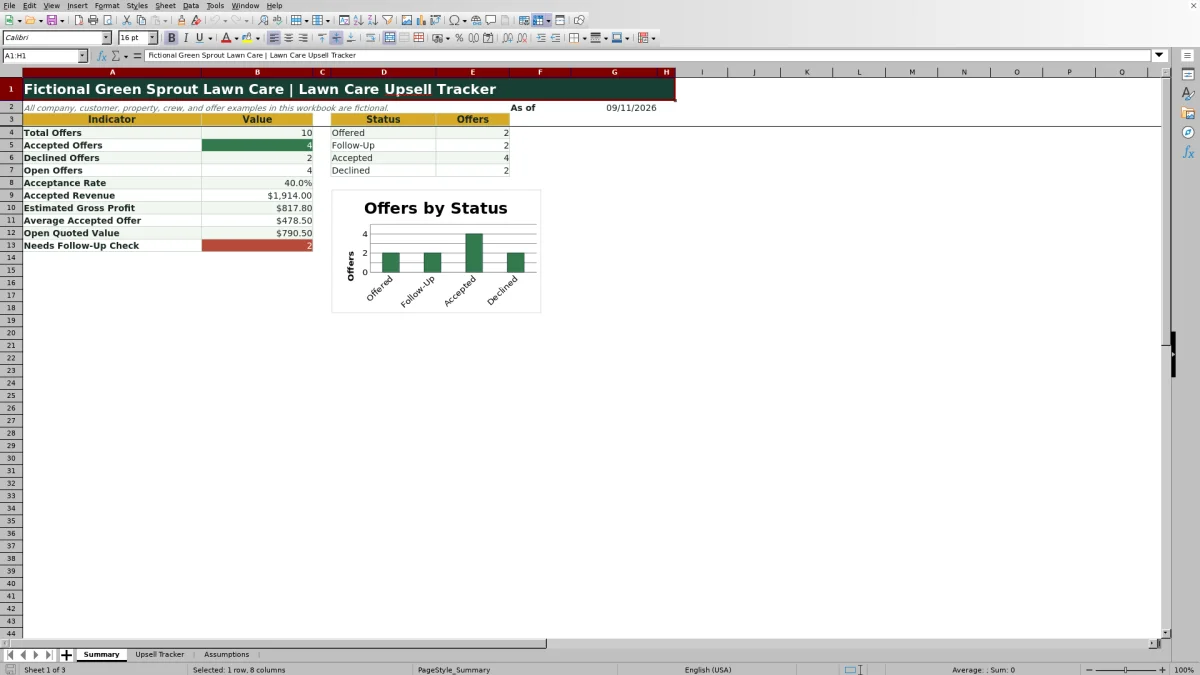
Built-in formulas calculate quoted amounts, accepted revenue, estimated gross profit, gross profit percentage, and days open. The Summary sheet adds follow-up visibility by reporting open offers, status counts, open quoted value, and records that need review.
How this workbook can help
- Keep each lawn care add-on offer connected to the customer, property, service date, crew, status, and follow-up details.
- See acceptance rate, accepted revenue, estimated gross profit, average accepted offer, and open quoted value without manually totaling records.
- Identify offers with missing statuses, missing follow-up dates, or follow-up dates that require attention.
- Use a consistent catalog of add-on units, default prices, and default costs while retaining the ability to edit planning assumptions.
What is in the file
How to get started
1. Review the service catalog
Start on the Assumptions sheet. Check the add-on services, units, default prices, default costs, base services, crews, offer statuses, date limits, quantity limits, and follow-up window. Update these editable assumptions before relying on calculated quotes or margins.
2. Record the offer
On the Upsell Tracker sheet, use the yellow input cells to enter an Offer ID, customer, property, service date, base service, add-on service, quantity, offer date, crew, and notes. Selecting an add-on service fills its unit, default unit price, and default unit cost from the catalog.
3. Update the decision and follow-up
Set the status to Offered, Follow-Up, Accepted, or Declined. Enter a decision date for a closed offer or a follow-up date for an open offer. Review the Follow-Up Alert for records that need a status, a follow-up date, or a follow-up check.
4. Review results and choose the next action
Use the Summary sheet to review offer volume, acceptance, revenue, estimated gross profit, open quoted value, and status counts. Filter the tracker when you need to inspect the records behind a result, then decide which open customer conversation or pricing assumption needs attention next.
A Single Record for Each Lawn Care Add-On Offer
An upsell can begin during mowing, cleanup, or another scheduled service, but it still needs a clear record after the crew leaves. The Upsell Tracker stores the Offer ID, customer, property, base service, proposed add-on, quantity, dates, crew, status, and notes on one row. Its 100 entry rows can be filtered across columns A through V, helping an operator review offers by customer, service, status, date, or crew without separating sales details from follow-up information.
Set Up Services, Prices, Costs, and Guardrails
The Assumptions sheet contains the add-on catalog used by the tracker. Each catalog item can have a unit, default unit price, and default unit cost. It also stores lists for base services, crew assignments, and the four offer statuses. Entry controls cover quantities and dates, while the follow-up check window can be set from 0 to 30 days. Because prices and costs are planning assumptions, operators should review them whenever labor, materials, service scope, or local pricing changes.
Interpret Revenue, Margin, and Open Pipeline
Quoted Amount equals quantity multiplied by the catalog unit price. Added Revenue and Estimated Gross Profit populate only when the status is Accepted, while gross profit percentage divides estimated gross profit by accepted revenue. The Summary sheet separately reports Open Quoted Value for Offered and Follow-Up records. That distinction prevents an unaccepted quote from being treated as completed sales revenue and gives the operator a clearer view of confirmed work versus potential work.
Practical Example: A Mulch Installation Offer
Situation: The fictional sample records a mulch installation offer for 600 square feet at a default unit price of $1.45 and a default unit cost of $0.82. Action: The offer is entered on August 17, 2026, and marked Accepted with an August 19 decision date. Result: The workbook calculates an $870.00 quoted amount and added revenue, a $378.00 estimated gross profit, a 43.4% gross profit percentage, and two days open. Interpretation: The accepted status moves the quote into accepted revenue, while the margin remains an estimate based on the catalog cost rather than a recorded final job cost. Next decision: The operator can confirm that the mulch price and cost assumptions still reflect the documented scope, then direct follow-up attention to offers that remain Offered or Follow-Up.
Common Entry Errors and Their Solutions
If an Offer ID is missing, the row is not counted as a total offer and several calculated fields remain blank; assign a unique Offer ID before reviewing the summary. If the status is blank, the alert displays Select status; choose one of the listed offer statuses. If an open offer has no follow-up date, the alert displays Set follow-up; enter the agreed contact date. If the follow-up date falls within the configured review window, the alert displays Check follow-up; contact the customer and update the record. If a closed offer lacks a decision date, Days Open remains blank; enter the actual decision date. If catalog values do not appear, confirm that the selected add-on service exactly matches an item on the Assumptions sheet.
Comparison With Manual and Software Alternatives
This Excel workbook functions as one complete operating method by combining offer capture, catalog assumptions, calculated quotes, decision tracking, follow-up alerts, and summary reporting. The comparison below shows when each realistic option may be more suitable.
| Method | More suitable when | Operational trade-off |
|---|---|---|
| Lawn Care Upsell Tracker Excel workbook | A business wants a structured, editable file with formulas, dropdowns, follow-up checks, and summary metrics for up to 100 offer rows. | Users need access to the shared workbook and must enter statuses and dates consistently; it does not send messages to customers. |
| Paper form or whiteboard | A very small crew needs an immediate visual list in one physical location and does not need calculated revenue or margin reporting. | Records can be difficult to filter, total, share, preserve, or connect to changing price assumptions. |
| Blank spreadsheet | The operator needs a fully custom layout and is prepared to build formulas, validation, alerts, and reporting from the beginning. | Setup and formula testing require more manual work, and inconsistent columns can weaken later analysis. |
| Dedicated field-service software | A growing operation needs mobile workflows, dispatch functions, customer communications, user permissions, or integrations beyond an XLSX file. | Implementation, subscription costs, and process configuration may be greater than a spreadsheet-based workflow requires. |
The appropriate choice depends on team size, mobility, integration requirements, reporting needs, and the amount of process administration the business can support.
Turn the Summary Into the Next Sales Decision
The Summary sheet reports total, accepted, declined, and open offers alongside acceptance rate, accepted revenue, estimated gross profit, average accepted offer, and open quoted value. Status counts and the chart show the current mix of Offered, Follow-Up, Accepted, and Declined records. Operators can begin with a summary result, filter the tracker to find the contributing rows, inspect dates and notes, and then choose whether to contact a customer, correct missing data, revisit a catalog assumption, or leave a closed offer unchanged.
Frequently asked questions
What does the Excel lawn care upsell tracker calculate?
It calculates quoted amount, added revenue for accepted offers, estimated gross profit, gross profit percentage, and days open. The Summary sheet also calculates status counts, acceptance rate, average accepted offer, open quoted value, and the number of records needing follow-up review.
When is an offer included in added revenue?
An offer contributes to Added Revenue only when its status is Accepted. Offered, Follow-Up, and Declined records do not populate the Added Revenue or Estimated Gross Profit fields.
How do the follow-up alerts work?
The alert can request a status, request a follow-up date, flag a follow-up within the configured check window, show that a future follow-up is scheduled, or mark an Accepted or Declined offer as closed. Each alert should be reviewed by the operator because the workbook does not contact customers automatically.
Can the add-on prices and costs be changed?
Yes. The Assumptions sheet contains editable default unit prices and costs for the add-on catalog. New tracker selections use those catalog values, so operators should review the assumptions before preparing or evaluating quotes.
How many upsell records can the workbook track?
The supplied Upsell Tracker has 100 prepared entry rows, from row 5 through row 104. Those rows include formulas, dropdown sources, date and quantity validation, follow-up logic, and summary references.
Editorial responsibility

Nadia KesslerEstimates, customers and job workflows

Ethan ReedWorkbook QA, crews and business controls