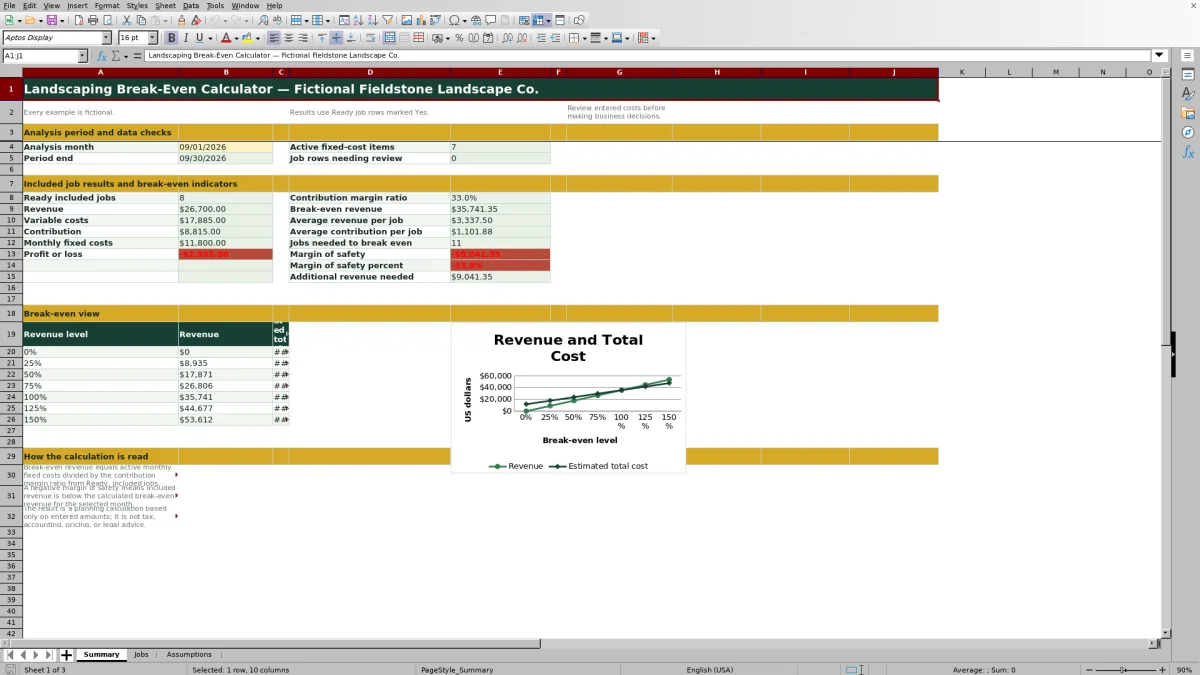
The Landscaping Break-Even Calculator for Excel is an XLSX planning workbook for lawn care and landscaping operators who need to find the monthly break-even revenue required to cover entered fixed and variable costs. It organizes monthly fixed-cost assumptions and job-level revenue, labor, materials, equipment and fuel, and other variable costs.
After you choose an analysis month, the spreadsheet includes only job rows dated in that month whose Entry Check is Ready and Include? is Yes. It then reports contribution, contribution margin, profit or loss, margin of safety, and the jobs needed to break even, helping you decide whether the current workload and job mix can cover overhead.
How this workbook can help
- Estimates the monthly landscaping revenue and number of average jobs needed to cover active fixed costs.
- Separates labor, materials, equipment and fuel, and other variable costs so job contribution is visible.
- Identifies incomplete job rows before they affect the Summary calculations.
- Shows profit or loss, margin of safety, and additional revenue needed for the selected month.
What is in the file
How to get started
1. Choose the analysis month
Open Summary and enter the first day of the month you want to review. The workbook calculates the period end automatically.
2. Enter monthly fixed costs
On Assumptions, replace the fictional examples with your monthly overhead amounts. Mark an item Yes in Active? when it should be included.
3. Record and review landscaping jobs
On Jobs, enter each job's service date, revenue, and four variable-cost categories. Enter zero when a cost is known to be zero, set Include? to Yes or No, select a status, and correct each row until the Entry Check shows Ready.
4. Use the results for the next operating decision
Return to Summary and compare revenue, contribution, fixed costs, break-even revenue, jobs needed, and margin of safety. Use any shortfall to guide workload, cost, or pricing review.
Situation: Find the Monthly Revenue Threshold
A landscaping company can stay busy while still missing its overhead target if job revenue does not leave enough money after direct costs. This workbook treats revenue minus labor, materials, equipment and fuel, and other variable costs as contribution. The contribution from qualifying jobs is then compared with active monthly fixed costs such as a yard lease, insurance, administrative payroll, software, and equipment payments.
Action: Enter Fixed Costs and Complete Job Records
Start with the Assumptions sheet and enter monthly amounts rather than annual totals. Then use the Jobs sheet to record each property's service date, service, quantity, unit, crew or equipment, revenue, and variable costs. The Summary uses job rows within the selected month only when Entry Check is Ready and Include? is Yes, so completing the row and reviewing its inclusion choice are part of the calculation.
Result: Review Break-Even Revenue and Job Count
The Summary totals included revenue, variable costs, contribution, and active monthly fixed costs. It divides contribution by revenue to calculate the contribution margin ratio, then divides fixed costs by that ratio to estimate break-even revenue. It also divides fixed costs by average contribution per included job and rounds up to estimate the whole number of jobs needed. Profit or loss, margin of safety, margin of safety percent, and additional revenue needed provide related views of the same monthly position.
Interpreted Practical Example
Suppose 10 Ready jobs marked Yes produce $30,000 in monthly revenue and $18,000 in total variable costs, while active monthly fixed costs equal $12,000. Contribution is $12,000, creating a 40% contribution margin. Break-even revenue is therefore $12,000 divided by 40%, or $30,000 break-even revenue. Average contribution is $1,200 per job, so the workbook estimates 10 jobs are needed. The result means this example is exactly at break-even: profit or loss and margin of safety are both zero. If the next month has only eight similar jobs planned, the operator can review whether to add roughly two comparable jobs, improve contribution per job, or reduce costs. These figures illustrate the formulas and are not results from the workbook's fictional sample company.
Interpretation: Read the Margin Without Overstating It
A positive margin of safety means included revenue is above the calculated break-even level; a negative margin means the business is below it for the selected month. The jobs-needed figure depends on average contribution per included job, so it is most useful when the expected job mix resembles the entered work. A month with more low-margin cleanup or installation work may require a different job count even when average revenue looks similar. Treat the calculation as a planning indicator based on entered amounts, not as tax, accounting, legal, compliance, or pricing advice.
Common Errors and Solutions
If a job is missing from Summary, check its service date, Include? choice, and Entry Check message. Complete the job ID, property, service, quantity, unit, crew or equipment, revenue, all four variable-cost entries, and status; use zero for a known zero cost rather than leaving it blank. If break-even revenue is blank, confirm that qualifying jobs have positive revenue and enough cost data to calculate contribution. If fixed costs appear too high, verify that Assumptions contains monthly amounts rather than annual amounts and that only current items are marked Yes. If the selected month's totals look incomplete, confirm that service dates fall between the displayed analysis-month start and period end.
Comparison and Next Decision
This Excel workbook operates as a complete operating method by connecting job-level contribution, active monthly fixed costs, validation checks, break-even outputs, and a chart. The alternatives below may be more suitable when different levels of speed, customization, or automation are required.
| Method | How it works | Limitations | More suitable when |
|---|---|---|---|
| This Excel workbook | Connects up to 100 prepared job rows and 100 fixed-cost rows to a monthly break-even Summary. | Requires manual data entry and uses the workbook's defined formulas and prepared row limits. | A contractor wants a repeatable monthly calculation without adopting a larger software platform. |
| Paper form or whiteboard | Records rough revenue, costs, and job targets by hand. | Does not automatically validate entries, calculate contribution, or update break-even results. | A small crew needs a quick field estimate and does not require detailed monthly records. |
| Blank spreadsheet | Allows a business to design its own columns, formulas, and reports. | Requires formula design, testing, and ongoing maintenance. | The operator needs a highly customized model and can build and audit spreadsheet logic. |
| Dedicated field-service software | May combine scheduling, estimates, dispatch, invoicing, customer records, and reporting. | Can involve subscriptions, setup, training, and workflows beyond break-even planning. | The company needs multiuser operations, live field updates, invoicing, or system integrations. |
The next decision should follow the result: if revenue is below break-even, review the additional revenue needed, expected job contribution, cost assumptions, and available capacity before deciding whether to pursue more work, adjust the job mix, examine pricing, or reduce overhead.
Frequently asked questions
What does the landscaping break-even calculator measure?
It estimates the monthly revenue and average number of jobs needed to cover active fixed costs using the contribution margin produced by qualifying job records. It also reports profit or loss, margin of safety, and additional revenue needed.
Which job rows are included in the Summary?
A job must have a service date within the selected analysis month, show Ready in Entry Check, and have Yes selected under Include?. Rows that do not meet all three conditions are excluded from the Summary totals.
How are variable costs handled?
Each job has separate fields for labor, materials, equipment and fuel, and other variable costs. The workbook adds those amounts to calculate total variable cost, then subtracts that total from job revenue to calculate contribution.
How does the workbook estimate jobs needed to break even?
It divides active monthly fixed costs by average contribution per included job and rounds the result up to a whole job. Because it uses an average, the estimate can change when the mix or profitability of jobs changes.
Why is a break-even result blank or incomplete?
Check that the analysis month is entered, qualifying jobs have positive revenue, every required variable-cost field contains a number, and job rows show Ready with Include? set to Yes. Also confirm that active fixed-cost items have valid monthly amounts.
Editorial responsibility

Nadia KesslerEstimates, customers and job workflows

Ethan ReedWorkbook QA, crews and business controls