The 2026 lawn care payroll input spreadsheet is an Excel workbook for preparing approved payroll inputs by pay period. Lawn care and landscaping operators can enter employee IDs, crews, regular and overtime hours, bonuses, reimbursements, other deductions, approval statuses, and notes while formulas retrieve employee names, rates, and overtime multipliers.
The XLSX calculates regular pay, overtime pay, gross earnings, and a prepared amount, then summarizes approved activity for a selected pay period. It does not calculate withholding, so managers should independently confirm rates, deductions, employee status, approvals, and tax handling before using the figures in payroll.
How this workbook can help
- Keeps up to 100 pay-period input rows in a consistent format for lawn care crews and employees.
- Reduces repeated data entry by retrieving employee names, hourly rates, and overtime multipliers from the employee list.
- Separates Approved, Draft, and Hold rows so managers can focus the Summary sheet on authorized payroll inputs.
- Surfaces review flags and non-approved row counts before prepared figures are transferred to a payroll process.
What is in the file
How to get started
1. Review assumptions and employee records
Confirm the permitted roles, crews, payroll statuses, employee statuses, and input limits on the Assumptions sheet. Replace the fictional employee records on the Employees sheet and verify each ID, name, role, hourly rate, overtime multiplier, and status.
2. Enter pay-period details
Use the yellow cells on the Payroll Input sheet to enter the pay period end, employee ID, crew, regular hours, overtime hours, bonus, reimbursement, other deduction, approval status, and notes. The input area runs from rows 5 through 104.
3. Check calculations and exceptions
Review the populated employee name, rate, overtime multiplier, regular pay, overtime pay, gross earnings, and prepared amount. Resolve all review flags by correcting missing, invalid, inactive, or incomplete information and confirming the underlying source records.
4. Review the selected pay period
Select the pay period end on the Summary sheet. Compare approved hours and amounts with source records, examine Draft and Hold rows, and investigate every non-approved row or flagged entry before using the prepared inputs in payroll.
Situation: Organizing Lawn Care Payroll by Pay Period
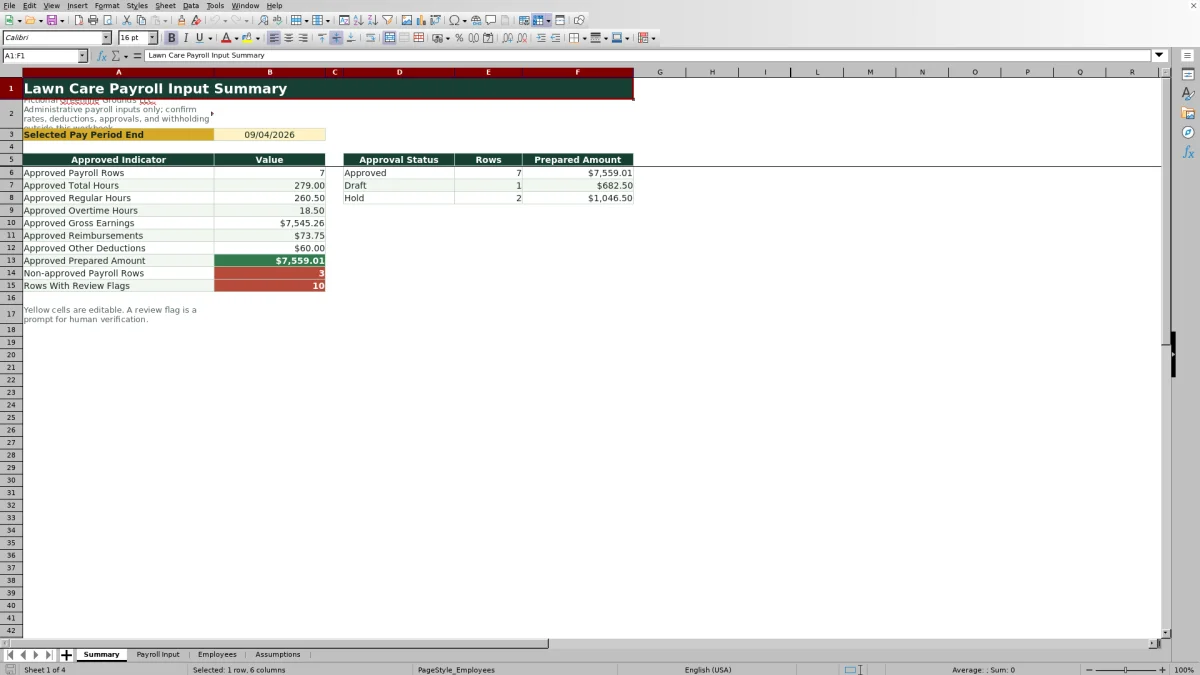
A lawn care operator may need to combine hours from several crews while keeping current employee rates, overtime rules, reimbursements, deductions, and approval decisions visible. The Summary sheet uses the Selected Pay Period End to isolate the applicable rows and report approved payroll counts, hours, gross earnings, reimbursements, deductions, prepared amounts, non-approved rows, and review-flag counts.
Action: Enter Hours, Rates, and Payroll Adjustments
Start with verified employee records because the Payroll Input sheet retrieves each employee's name, hourly rate, and overtime multiplier from the Employees sheet. For each pay-period row, enter the employee ID, crew, regular and overtime hours, bonus, reimbursement, other deduction, approval status, and any useful note. Date, list, decimal, and employee-ID validation help keep entries within the workbook's configured assumptions, but a manager still needs to verify every source value.
Result: Interpreted Practical Payroll Example
Consider the fictional DEMO-001 entry for September 4, 2026. With 40 regular hours at $29.00 per hour, regular pay is $1,160.00. Four overtime hours at a 1.5 multiplier produce $174.00 in overtime pay, making gross earnings $1,334.00 when the bonus is $0.00. Adding a $25.00 reimbursement and subtracting a $0.00 other deduction produces a prepared amount of $1,359.00. Because the row is Approved, that amount is included in the selected pay period's approved summary. The result should be interpreted as a prepared administrative input, not tax-adjusted net pay.
Interpretation: Read Approval and Summary Results Correctly
An Approved row contributes to the Summary sheet's approved counts, hours, gross earnings, reimbursements, deductions, and prepared amount for the selected date. Draft and Hold rows remain visible in the status summary but do not enter the approved totals. A non-approved count indicates that one or more populated rows still require a decision, while a review-flag count indicates that data requires human verification even if another field appears complete.
Common Payroll Input Errors and Solutions
A Review Flag can point to issues such as a missing pay period, an unrecognized employee ID, an inactive employee, a missing crew, a missing rate, or incomplete payroll information. Correct a pay-period issue by choosing a date within the Assumptions limits; correct an employee issue by matching the ID to an active record on the Employees sheet; and correct crew, hour, or amount issues by checking source records and the applicable validation limits. If a row remains Draft or Hold, document the reason in Notes and obtain the required approval rather than changing the status solely to clear the summary count.
Comparison With Manual and Software Alternatives
This comparison treats the workbook as one complete operational method: maintain employee rates, enter pay-period details, calculate earnings, surface review issues, approve rows, and summarize the selected period. Each option is more suitable when its operating conditions match the business.
| Method | More suitable when | Operational consideration |
|---|---|---|
| This Excel workbook | A lawn care business wants a structured Excel process for up to 100 payroll rows, linked employee rates, calculated amounts, review flags, and approval summaries. | Withholding is not calculated, and managers must verify source records, deductions, statuses, and approvals. |
| Paper form or manual worksheet | A very small crew works offline and needs only a temporary record before another person enters payroll. | Calculations, employee-rate lookups, status totals, and error checks require manual work and may need duplicate entry. |
| Blank spreadsheet | The operator needs custom fields and has the time and spreadsheet knowledge to build formulas, validation, review logic, and summaries. | Controls found in this workbook must be designed, tested, documented, and maintained separately. |
| Dedicated field-service software | The company needs mobile time capture, scheduling, dispatch, job tracking, permissions, or integrations across a larger operation. | Payroll capabilities, exports, subscription costs, setup requirements, and integration support vary by system and require separate evaluation. |
The choice depends on crew size, workflow complexity, connectivity, internal spreadsheet skill, and whether payroll preparation needs to connect with scheduling or field-time systems.
Next Decision: Approve, Hold, or Correct Each Row
The next decision is whether each populated row has enough verified information to remain Approved, stay in Draft, move to Hold, or return for correction. Before transferring prepared figures, compare the Summary totals with time records and authorization documents, resolve every review flag, confirm reimbursements and deductions, and arrange separate withholding and payroll-tax processing.
Frequently asked questions
Does this lawn care payroll spreadsheet calculate withholding or net pay?
No. The workbook calculates gross earnings and a prepared amount based on earnings, reimbursements, and other deductions, but it does not calculate tax withholding or complete net payroll.
How is the prepared amount calculated?
The prepared amount equals gross earnings plus reimbursement minus other deduction. Gross earnings equal regular pay plus overtime pay plus any bonus.
What approval statuses are available?
The validated payroll statuses shown in the workbook are Approved, Draft, and Hold. Only Approved rows contribute to the approved totals on the Summary sheet for the selected pay period.
Where do employee rates and overtime multipliers come from?
The Payroll Input sheet uses the employee ID to look up the employee name, hourly rate, and overtime multiplier from the Employees sheet. Those employee records should be confirmed before payroll inputs are prepared.
What should I do when a review flag appears?
Inspect the row for missing or invalid pay-period, employee, status, crew, rate, hour, amount, approval, or related information. Correct the source-backed entry, confirm the employee is active, and have a person review the row before using its prepared amount.
Editorial responsibility

Nadia KesslerEstimates, customers and job workflows

Ethan ReedWorkbook QA, crews and business controls