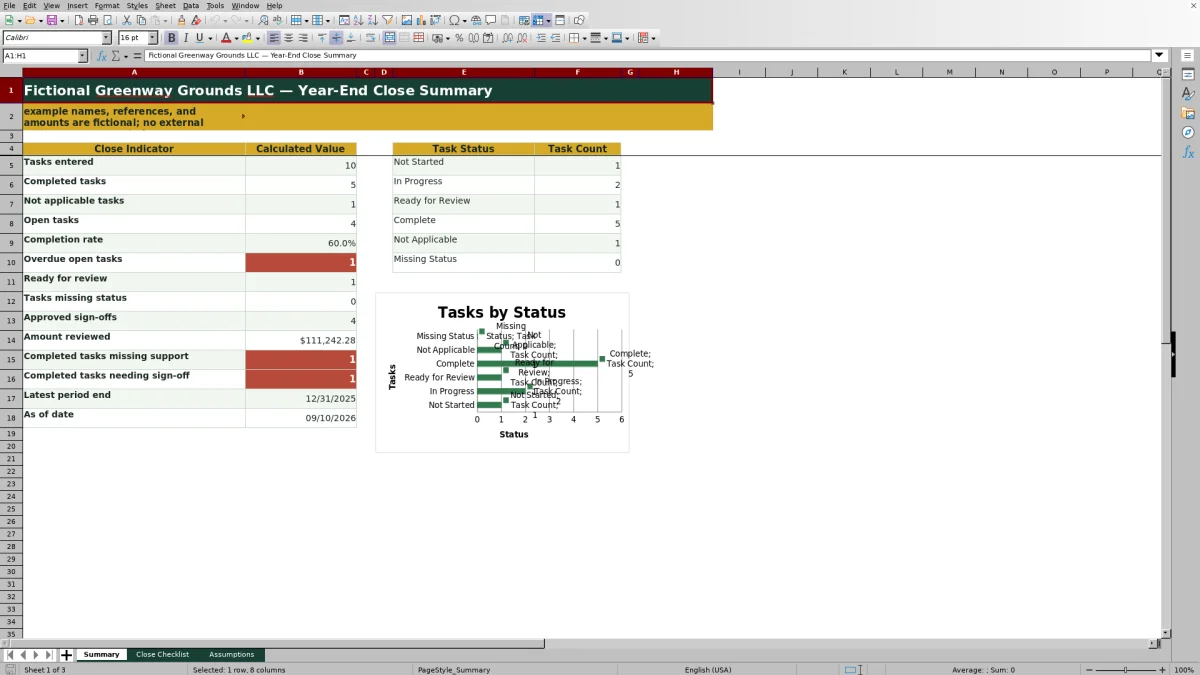
This Excel workbook helps lawn care and landscaping business operators organize accounting close tasks, owners, deadlines, supporting-file references, reviewed amounts, completion dates, and reviewer details in one structured checklist. Its Summary sheet calculates close indicators and displays a chart of task statuses.
The workbook also records human sign-offs and flags entries that may need attention, such as a missing status, support reference, completion date, review date, or approval. The included fictional example uses a December 31, 2025 reporting period with close activity in 2026; operators should replace those examples with their own dates, tasks, people, and file references.
How this workbook can help
- Gives operators and accounting staff one view of year-end tasks, ownership, deadlines, preparation, review, and sign-off.
- Helps expose incomplete documentation or approval steps before the close is treated as finished.
- Separates completed, not-applicable, open, overdue, ready-for-review, and missing-status work for clearer prioritization.
- Creates a repeatable administrative process for linking close tasks to supporting-file references and reviewer decisions.
What is in the file
How to get started
1. Confirm the close settings
Open Assumptions and review the default reporting period end and due-soon warning lead days. Update the available task statuses, sign-off statuses, or close areas only when the business needs different choices, then review existing checklist entries after changing a list.
2. Enter and assign each task
On Close Checklist, give each task a Task ID and record its close area, description, period end, owner, and due date. Use the validated dropdowns for Close Area and Task Status so entries remain consistent.
3. Record completion and support
Add the support reference, amount reviewed, and completed date as work is prepared. Enter the reviewer, review date, and sign-off status after a person has examined the supporting material.
4. Resolve exceptions and make the close decision
Review Days Until Due and the Attention message for every active row. Then use Summary to identify overdue work, missing statuses, completed tasks without support, and completed tasks still requiring sign-off before deciding whether the close is ready to finalize.
What the lawn care close workbook controls
The workbook treats year-end close as an operational control process rather than a simple to-do list. Each checklist row can identify the accounting area, task, responsible owner, reporting period, deadline, supporting reference, reviewed amount, preparer completion, reviewer activity, sign-off, and notes. The Summary sheet then reports task volume, completion, open work, overdue open work, approvals, reviewed amounts, and selected documentation exceptions.
Interpreted practical example
Situation: The fictional Payables task FYC-003 covers recording outstanding vendor bills for the December 31, 2025 period. Action: The row records a September 9, 2026 due date, a fictional unpaid-bills file reference, $9,234.55 reviewed, a completed date, a named reviewer, Ready for Review status, and Pending sign-off. Result: The task is counted as ready for review but not as an approved sign-off, while the blank review date remains visible. Interpretation: Preparation appears to have advanced, but reviewer approval has not been documented, so the close team should not interpret the row as fully approved. Next decision: The reviewer should examine the referenced file, record the review date, and select Approved, Changes Requested, or another applicable sign-off status based on the actual review.
How task status and deadlines work
Task Status supports Not Started, In Progress, Ready for Review, Complete, and Not Applicable. Days Until Due is calculated only when a row has a Task ID and due date and is not marked Complete or Not Applicable. Because the calculation uses TODAY(), its displayed value changes as the workbook is recalculated. Summary also counts overdue open tasks by comparing due dates with the current date while excluding Complete and Not Applicable entries.
Supporting files, reviewed amounts, and sign-offs
Support Reference is a text field for identifying a reconciliation, aging report, bill list, or another close file; it does not attach or verify the external document. Amount Reviewed accepts zero or positive decimal values and is summarized as currency. Completed Date documents preparation timing, while Reviewer, Review Date, and Sign-off Status document the separate human review. Approved and Not Required are distinct sign-off outcomes, so operators should use the one that reflects what actually occurred.
Common errors and solutions
A row with task details but no Task ID may be omitted from task-based Summary indicators, so assign an ID before relying on totals. A missing Task Status can produce an Add status message; select a valid status from the dropdown. If a Complete row lacks its completion date or support reference, enter the missing record or reconsider whether Complete is accurate. If a completed task has neither Approved nor Not Required sign-off, route it for review and record the decision. When Approved is selected without a review date, confirm the review occurred and enter its date rather than using approval as a placeholder. After editing validation choices on Assumptions, inspect existing rows for old values that no longer match the updated lists.
Comparison with other close-tracking methods
This comparison treats the Excel workbook as one complete method consisting of its assumptions, detailed checklist, formulas, exception prompts, summary indicators, and chart. Each alternative is more suitable when its stated operating condition applies.
| Operational method | Useful capabilities | Limitations | More suitable when |
|---|---|---|---|
| Complete Excel close workbook | Structured task fields, dropdowns, date and amount validation, formula-driven exceptions, summary metrics, and sign-off records | Requires manual data entry and stores file references rather than connected documents | A lawn care business needs a repeatable finance-close control without implementing another software platform |
| Paper checklist or whiteboard | Quick to start and easy to view in one physical location | Limited filtering, no formula-driven exception checks, and weaker support for remote review | A very small team has only a few tasks, works in one location, and does not need calculated reporting |
| Blank spreadsheet | Flexible columns and minimal setup constraints | No built-in close structure, validated choices, attention formulas, or prepared summary | The process is temporary or unusual enough that a custom ad hoc layout is more useful than a standardized checklist |
| Dedicated field-service software | May support mobile crews, scheduling, customer records, invoicing, and system integrations | Its field operations workflow may not include the accounting-close evidence and sign-off structure represented here | Real-time job dispatch, mobile field updates, customer workflows, or connected operational systems are the primary requirement |
The workbook is more suitable when the immediate need is controlled year-end accounting follow-up and manual references are acceptable. Dedicated software is more suitable when the business first needs connected field operations and is prepared to configure a separate finance-close process.
Turning the summary into the next close decision
Begin with Tasks entered and the completion rate, then investigate overdue open tasks, Ready for Review work, and rows missing a status. Next, compare Completed tasks missing support and Completed tasks needing sign-off with the underlying checklist entries. A high completion percentage does not by itself establish that review is finished; the supporting references, completed dates, review dates, and sign-off outcomes provide the context needed for the next decision. The workbook supports that decision, but a responsible person still needs to determine whether exceptions are resolved and the close can be finalized.
Frequently asked questions
What does this lawn care year-end close checklist track?
It tracks task IDs, close areas, task descriptions, reporting periods, owners, due dates, task statuses, support references, reviewed amounts, completion dates, reviewers, review dates, sign-off statuses, calculated days until due, attention messages, and notes.
How many close tasks can the Excel workbook hold?
The Close Checklist provides 100 prepared task rows, covering rows 5 through 104.
Does the workbook store the supporting files?
No. Support Reference stores a text description or location reference for a file, but the workbook does not attach, retrieve, or validate external documents.
Does marking a task Complete also mean it is approved?
No. Task Status and Sign-off Status are separate fields. A completed task can still require a support reference, completed date, reviewer action, review date, or Approved or Not Required sign-off.
Does the workbook connect to accounting systems or provide tax advice?
No. The workbook is not connected to accounting software, banks, payroll providers, tax systems, or document repositories, and it does not provide legal or tax advice.
Editorial responsibility

Nadia KesslerEstimates, customers and job workflows

Ethan ReedWorkbook QA, crews and business controls