This Lawn Care Lead Tracker is an Excel workbook for organizing prospective customers from the initial inquiry through a won or lost decision. It records the prospect, property, lawn area, requested service, lead source, sales owner, status, estimated value, and close date while providing pipeline visibility across as many as 100 lead rows.
The XLSX also connects each open opportunity to a next action and date. Formulas calculate likelihood, weighted value, days open, and follow-up condition, giving lawn care and landscaping operators practical follow-up control without requiring a separate customer relationship management system.
How this workbook can help
- Keep prospect, property, requested service, lead source, and owner details in one structured register.
- See open pipeline value, weighted pipeline value, won value, and lead counts from the Summary sheet.
- Identify leads that need a status, next action, close date, or overdue follow-up review.
- Adapt the available statuses, likelihood percentages, services, lead sources, and owners to the company’s sales process.
What is in the file
How to get started
1. Configure the sales choices
Open the Assumptions sheet and replace the yellow status, likelihood, service, lead-source, and owner entries with choices used by the business. Keep status labels unique and enter each likelihood as a percentage from 0% to 100%.
2. Enter each lawn care lead
Use the yellow cells on the Leads sheet to assign a unique Lead ID and record the date received, prospect, property, lawn area, requested service, source, owner, status, and estimated value. Selecting from the provided lists supports consistent status choices and reliable calculations.
3. Set and complete the next action
Enter a Next Action Date and describe the call, estimate, site visit, or other task. Maintain next action discipline by reviewing records marked Past due, Due today, Set next action, or Set status. When a lead becomes Won or Lost, add its close date.
4. Review the pipeline
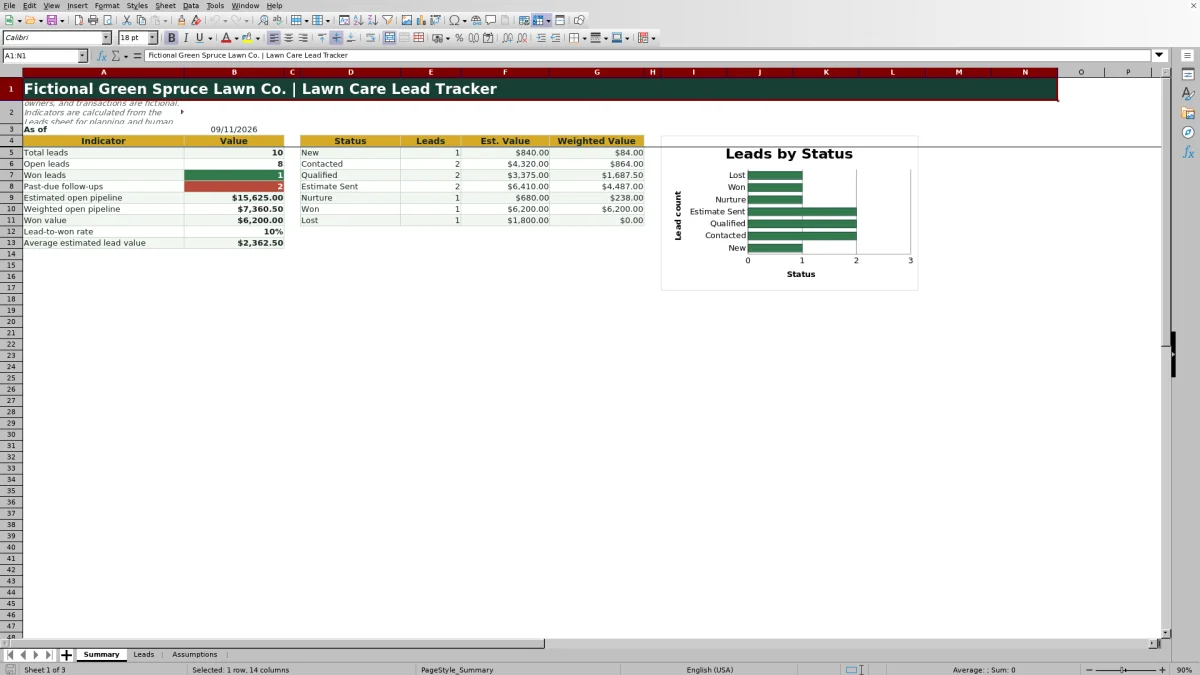
Use the Summary sheet to review total leads, open leads, won leads, past-due follow-ups, estimated open pipeline, weighted open pipeline, won value, lead-to-won rate, and average estimated lead value. Filter the Leads sheet when a closer look by owner, service, source, or status is needed.
A Structured Sales Process for Lawn Care Inquiries
The workbook organizes a lawn care inquiry as a sales record rather than leaving contact details in email, text messages, or handwritten notes. Each row connects the customer and property to the requested service, estimated lawn area, source, assigned owner, sales status, expected value, and next action. Because the Leads sheet can be filtered across all 17 columns, an operator can isolate opportunities by service, owner, source, status, or follow-up condition during a sales review.
How Weighted Value and Follow-Up Checks Work
The selected status looks up a likelihood percentage from the Assumptions sheet. The workbook multiplies that percentage by the estimated value to calculate weighted value. For example, a $1,200 opportunity marked Qualified uses the configured 50% likelihood and produces a $600 weighted value. This is a planning estimate rather than a promised sale. The Follow-up Check separately evaluates status, next-action date, and close date to return operational prompts such as Set status, Set next action, Past due, Due today, Scheduled, Add close date, or Closed.
Interpreted Practical Example
Situation: A homeowner requests a spring cleanup estimated at $1,200, and the sales owner confirms that the property fits the company’s service area. Action: The operator enters the lead, selects Qualified, and schedules a site visit for the next day. Result: With Qualified set to 50% on the Assumptions sheet, the workbook calculates a $600 weighted value and labels the follow-up Scheduled. Interpretation: The $600 amount represents probability-adjusted pipeline for planning; it is not the invoice amount or a confirmed sale. Next decision: After the site visit, the operator can move the lead to Estimate Sent, revise the estimated value, and schedule the next customer contact. If the action date passes first, the follow-up condition changes to Past due when Excel recalculates.
Common Entry Errors and Their Solutions
A duplicate Lead ID may fail the uniqueness validation; assign a different ID or correct the existing record instead of creating a second copy. Set status means the row has a Lead ID but no sales status, so select one from the status list. Set next action means an open lead has no Next Action Date, so add a valid date and describe the task. Add close date appears when a lead is Won or Lost without a Close Date, so enter the actual closing date. A blank likelihood or weighted value can occur if pasted status text does not match the Assumptions list; select the intended list value or correct the corresponding assumption. Date and number validation errors should be resolved by entering values within the allowed ranges rather than converting those fields to free-form text.
Comparison With Paper, Blank Spreadsheets, and Field-Service Software
The complete workbook method combines structured entry, controlled choices, calculated pipeline values, follow-up checks, and a summary review. The appropriate alternative depends on lead volume, reporting needs, staff access, and whether sales tracking must connect to dispatching or billing.
| Method | Operating approach | Tradeoffs | More suitable when |
|---|---|---|---|
| Lawn Care Lead Tracker Excel workbook | Uses one Leads register, configurable Assumptions, formulas, validations, follow-up checks, and a Summary dashboard as a complete file-based process. | Provides consistent calculations and review prompts, but users must maintain the shared file and complete follow-ups themselves. | More suitable when a small lawn care team wants structured pipeline management in Excel without broader dispatch, invoicing, or customer-portal functions. |
| Paper form or whiteboard | Records inquiries and tasks manually in a physical location. | Quick to start and usable without a computer, but totals, history, filtering, and remote access require manual work. | More suitable when lead volume is very low, one person handles every inquiry, and offline visibility is the main requirement. |
| Blank spreadsheet | Starts with empty columns that the operator designs and maintains. | Allows an unrestricted layout, but formulas, validation, status logic, and reporting must be built separately. | More suitable when the company needs only a simple contact list or has staff available to design a custom spreadsheet process. |
| Dedicated field-service software | Connects customer records with functions such as mobile crew scheduling, routing, estimates, invoicing, or payment workflows. | Can support a wider operating process, but usually requires implementation, user administration, and recurring cost. | More suitable when multiple crews need connected sales, scheduling, field updates, billing, and customer communications. |
The Excel workbook occupies the middle ground between an unstructured manual list and a broader field-service platform. Its value comes from using the entire workflow consistently, not from treating the Summary, Leads, or Assumptions sheet as a separate tracking method.
Using the Summary for Sales Review
The Summary sheet calculates total leads, open leads, won leads, and past-due follow-ups from the Lead ID, Status, and Follow-up Check fields. It also reports estimated open pipeline, weighted open pipeline, won value, lead-to-won rate, and average estimated lead value. A status chart displays lead counts across the seven configured statuses. During review, operators can use these figures to identify workload and pipeline concentration, then return to the Leads sheet to decide which individual records require contact or correction.
Customizing Assumptions Responsibly
The Assumptions sheet contains seven status and likelihood pairs, eight service choices, six lead sources, and three owner entries. Existing yellow cells can be replaced with the company’s terminology, but status labels should remain unique and likelihoods must stay between 0% and 100%. The built-in drop-downs point to fixed visible ranges, so adding entries outside those ranges does not automatically expand the choices. After changing an assumption, review affected lead rows and the Summary sheet to confirm that the labels and weighted values still reflect the intended sales process.
Frequently asked questions
How many prospects can the Lawn Care Lead Tracker hold?
The Leads sheet provides 100 working rows, from row 5 through row 104. Each populated row should use one unique Lead ID.
Which fields does the Excel workbook calculate automatically?
The workbook calculates likelihood from the selected status, weighted value from estimated value and likelihood, days open from the received or close date, and a follow-up check from status, next-action date, and close date. The Summary sheet also calculates pipeline and lead-count indicators.
How does the tracker identify overdue lawn care follow-ups?
For an open lead with a Next Action Date earlier than the current date, the Follow-up Check returns Past due. A date equal to the current date returns Due today, while a future date returns Scheduled. These results depend on Excel recalculating the TODAY() formulas.
Can the status, service, source, and owner choices be customized?
Yes. The visible yellow entries on the Assumptions sheet can be replaced with the company’s choices. Keep status labels unique, use likelihoods from 0% to 100%, and remember that the supplied drop-downs reference fixed ranges.
Does this workbook replace dedicated lawn care field-service software?
No. It is a file-based sales lead tracker focused on prospects, pipeline value, owners, and next actions. Dedicated field-service software may be more suitable when the business also needs connected crew dispatching, routing, mobile job updates, invoicing, payments, or customer portals.
Editorial responsibility

Nadia KesslerEstimates, customers and job workflows

Ethan ReedWorkbook QA, crews and business controls