This landscaping bank reconciliation Excel workbook helps lawn care and landscaping operators compare bank and book transactions for a selected period. It provides fields for dates, descriptions, signed amounts, book references, categories, and explanations while calculating the difference and match status for each entered row.
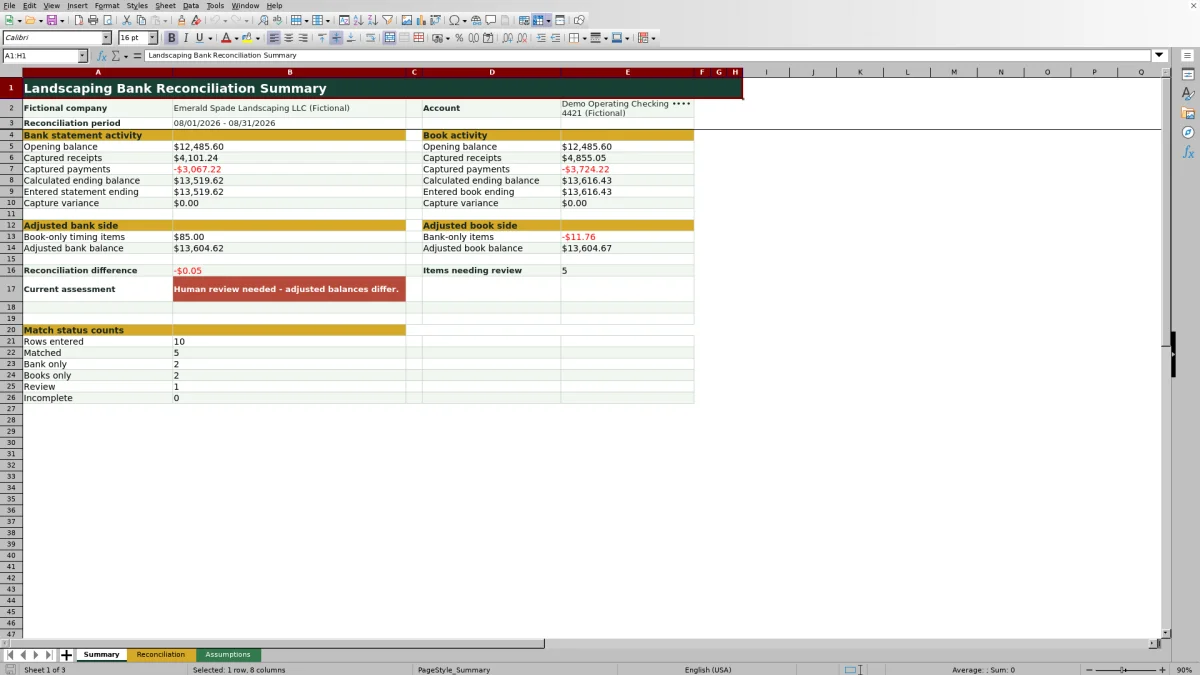
After transactions are entered, the XLSX summarizes statement and book activity, capture variances, timing items, adjusted balances, open-item counts, and the remaining reconciliation difference. Operators can use those results to interpret whether the account agrees within the selected tolerance or whether missing, mismatched, or incomplete entries need another decision.
How this workbook can help
- Keeps bank activity, accounting records, differences, statuses, and follow-up explanations together for a monthly reconciliation.
- Surfaces matched transactions, bank-only items, book-only items, review items, and incomplete rows without requiring manual status labels.
- Connects transaction-level entries to calculated ending balances, adjusted balances, open-item counts, and a current reconciliation assessment.
- Supports a consistent review process for landscaping receipts, vendor payments, payroll, fuel, bank fees, and other categorized activity.
What is in the file
How to get started
1. Set up the reconciliation
Open the Assumptions sheet and replace the fictional company and account labels. Enter the period and balance inputs, including the start and end dates, statement opening and ending balances, book opening and ending balances, and matching tolerance.
2. Enter bank and book activity
Use rows 5 through 104 on the Reconciliation sheet. Enter signed amounts: receipts are positive, while payments, fees, and withdrawals are negative. Place corresponding bank and book entries on the same row when they represent the same transaction.
3. Review exceptions and explain them
Check the calculated Difference and Match Status columns. Filter for Bank only, Books only, Review, or Incomplete, then use Explanation / Next Step to document timing differences, missing entries, corrections, or required follow-up.
4. Interpret the summary and decide what to do next
Review capture variances, adjusted bank and book balances, open-item counts, and the reconciliation difference on the Summary sheet. If balances agree within tolerance but open items remain, resolve or document those items before closing the period.
What the Landscaping Bank Reconciliation Workbook Does
At month-end, a landscaping operator may have customer deposits, fuel purchases, payroll withdrawals, supplier payments, and bank charges recorded in different places. This Excel workbook provides 100 transaction-entry rows for bringing the bank and book sides together. Each populated row can hold a reconciliation ID, bank date and amount, description, book date and reference, book amount, category, and follow-up explanation. Formulas calculate the amount difference and assign a review status without connecting directly to a bank or accounting platform.
Set the Period, Balances, and Matching Tolerance
The Assumptions sheet controls the company and account labels shown on the Summary sheet, the reconciliation period, opening and ending balances for both record sets, and the matching tolerance. The period should correspond to the statement and accounting records under review. The tolerance determines whether the absolute difference between a bank amount and book amount is small enough to receive a Matched status. Date and amount validations also use limits stored on this sheet, so operators should review the assumptions before entering transactions.
Match Landscaping Transactions Row by Row
Corresponding bank and book entries belong on the same reconciliation row. A customer payment deposited into the bank can be paired with its invoice receipt in the books; a fuel-card withdrawal can be paired with its receipt or expense entry; and a payroll withdrawal can be paired with the applicable payroll reference. When both amounts are present, the workbook subtracts the book amount from the bank amount. When only one side is present, it identifies the item as Bank only or Books only so the operator can investigate its timing or recording.
Practical Example: Interpreting a Customer Receipt
Situation: the fictional example includes reconciliation ID BR-0001 for a $1,850 customer receipt dated August 1, 2026. Action: the operator pairs the $1,850 bank deposit with book reference INV-F001 and assigns the Customer receipt category. Result: the formula produces a $0.00 difference and, when a valid tolerance of at least zero is entered, classifies the row as Matched. Interpretation: the amount recorded by the bank agrees with the amount in the books for that pair. Next decision: retain the match and move attention to Bank only, Books only, Review, or Incomplete rows rather than investigating this receipt further.
Read the Summary and Choose the Next Decision
The Summary sheet begins with opening balances and adds the signed transactions captured on each side to calculate ending balances. It then compares those calculated amounts with the entered statement and book ending balances to show capture variances. Book-only timing items are applied to the entered statement ending balance, while bank-only items are applied to the entered book ending balance. The workbook compares the resulting adjusted balances and counts unresolved statuses. A difference within tolerance does not by itself close the review when open items remain; the current assessment distinguishes agreement with unresolved items from agreement with no open items.
Common Reconciliation Errors and Solutions
An incorrect sign is a common error: entering a fuel payment as positive increases activity instead of reducing it. The solution is to enter receipts as positive and payments, fees, and withdrawals as negative. Another error is entering a description or reference while leaving both amount cells blank, which produces an Incomplete status; enter the applicable amount or clear the unused row. If both amounts are present but the status remains Review, confirm that the matching tolerance is entered and compare the two amounts. If the Summary shows a capture variance, verify that all statement or book transactions for the period were entered and that the corresponding opening and ending balances came from the same period. If unrelated transactions were paired, move them to separate rows and record the appropriate explanation or next step.
Comparison: Excel Workbook vs. Other Reconciliation Methods
This complete workbook method combines structured transaction entry, formula-based comparisons, status counts, adjusted balances, and written follow-up. It is more suitable when a landscaping operator wants a repeatable manual reconciliation process in Excel without adopting a broader operating platform. The alternatives remain useful under different conditions.
| Method | Matching and review | Summary and controls | More suitable when |
|---|---|---|---|
| Landscaping bank reconciliation Excel workbook | Pairs bank and book entries by row and calculates differences and statuses. | Includes assumptions, validation, adjusted balances, status counts, filters, and an assessment. | The operator wants a structured, reviewable process for up to 100 entered transaction pairs. |
| Paper reconciliation form | Amounts and explanations are compared and written manually. | Totals and open items must be calculated and updated by hand. | Transaction volume is very low and no formula-based tracking is needed. |
| Blank spreadsheet | The operator designs columns, formulas, and exception labels from the beginning. | Controls depend on the formulas, validation, and layout the user builds and maintains. | The business needs a fully custom structure and has the skill to create and test it. |
| Dedicated field-service software | Capabilities vary and may include accounting integrations or imported transactions. | May also cover scheduling, dispatch, customer management, estimates, and mobile workflows. | The team needs broader field-service operations or automated integrations and can support the added setup and cost. |
No option removes the need to verify entries against bank statements, accounting records, receipts, payroll reports, and other source documents.
Frequently asked questions
How many transactions can I enter in the workbook?
The Reconciliation sheet provides 100 entry rows, covering rows 5 through 104. Each row can contain bank details, book details, a category, and an explanation or next step.
How should receipts and payments be entered?
Enter receipts and other money received as positive amounts. Enter payments, bank fees, withdrawals, payroll, fuel costs, and other money leaving the account as negative amounts on both the bank and book sides.
What do the match statuses mean?
Matched means both amounts are present and their difference is within the configured tolerance. Bank only means the book amount is blank, Books only means the bank amount is blank, Review indicates a mismatch or missing tolerance, and Incomplete means the row contains information but neither amount is entered.
How are bank-only and book-only items used in the summary?
The Summary sheet adds signed book-only items to the entered statement ending balance and signed bank-only items to the entered book ending balance. It then compares the adjusted balances to calculate the remaining reconciliation difference.
Does the Excel workbook connect directly to a bank or accounting system?
No. The workbook does not connect to a bank or accounting platform. Transactions and balance inputs must be entered or transferred manually, and formula-generated statuses should be checked against source documents.
Editorial responsibility

Nadia KesslerEstimates, customers and job workflows

Ethan ReedWorkbook QA, crews and business controls