This Excel landscaping sales tax tracker supports transaction-level tax tracking for a lawn care or landscaping business. Use the Sales sheet to record invoice details, service categories, jurisdiction codes, tax treatments, sale amounts, tax collected, and record statuses.
The XLSX looks up editable jurisdiction rates, calculates taxable sales and estimated tax, highlights records that need review, and provides monthly filing-period totals on the Summary sheet. It is an administrative and reconciliation tool, so confirm taxability, rates, sourcing rules, and filing requirements with the appropriate tax authority or a qualified advisor.
How this workbook can help
- Keep invoice details, taxable sales, calculated tax, and collected tax together in one transaction record.
- Separate taxable, exempt, and review transactions while excluding voided records from calculated transaction amounts.
- Compare calculated tax with the amount collected before preparing sales tax filing figures.
- Use monthly summaries and check counts to focus attention on incomplete or potentially inconsistent records.
What is in the file
How to get started
1. Review the assumptions
Open the Assumptions sheet and replace the fictional jurisdiction codes, tax areas, rates, and service categories with information appropriate for your business. Confirm the tax difference tolerance and the status included in totals. Do not replace the Taxable, Exempt, Review, Draft, Posted, or Voided labels unless the related formulas and validation rules are also updated.
2. Enter each landscaping sale
Use the editable cells on the Sales sheet to enter the sale date, invoice number, customer, property, service category, jurisdiction, tax treatment, sale amount, tax collected, and record status. The workbook then calculates the applied rate, taxable sales, estimated tax, difference, filing period, and check note.
3. Resolve transaction checks
Review every Check Note before relying on the totals. Add missing invoice numbers, choose required classifications, correct unknown jurisdiction codes, investigate tax differences, and verify transactions marked Review.
4. Reconcile the reporting period
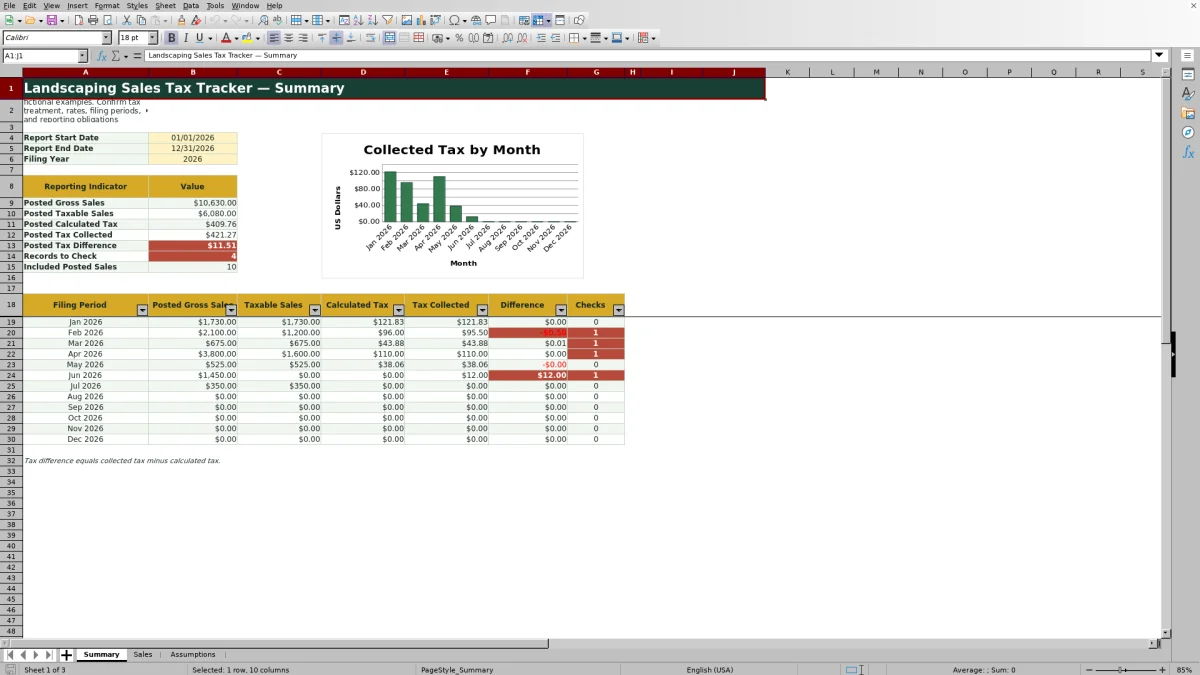
Set the start date, end date, and filing year on the Summary sheet. Compare posted gross sales, taxable sales, calculated tax, tax collected, differences, monthly totals, and check counts with invoices and accounting records before preparing a return.
Situation: Landscaping Sales Tax Records Can Vary by Job
A landscaping company may perform mowing, installation, pruning, cleanup, irrigation repair, and other services across multiple tax areas. A sale can require different treatment based on the service and jurisdiction, while the amount charged and tax collected still need to match the invoice. The workbook creates a separate transaction record for the facts used in that review rather than treating every landscaping sale the same way.
Action: Record the Sale and Apply Reviewed Assumptions
Enter the transaction in the Sales sheet and choose its service category, jurisdiction code, tax treatment, and record status from the available lists. The workbook looks up the jurisdiction rate from the Assumptions sheet and calculates taxable sales and estimated tax. Setting a completed transaction to Posted connects it to the default Summary totals, because Posted is initially configured as the status included in reporting.
Result: Review Filing-Period Totals and Differences
The Summary sheet reports posted gross sales, taxable sales, calculated tax, tax collected, the collected-minus-calculated difference, included sales, and records requiring attention for the selected dates. Its monthly section provides a reconciliation view for January through December, while the chart displays monthly tax collected.
Interpretation: Practical Landscaping Invoice Example
Suppose a posted lawn-mowing invoice records a $480 sale in jurisdiction FIC-A, with Taxable selected and $31.20 entered as tax collected. The supplied fictional assumption for FIC-A is 6.5%, so the workbook treats $480 as taxable sales and calculates $31.20 of tax. The resulting difference is $0, and the sale is included in the January totals when its date falls in January. A zero difference means the entered tax collected matches the workbook calculation; it does not establish that the fictional rate or selected tax treatment is legally correct. The next decision is to verify the real jurisdiction rate and service classification before using the figure in a filing.
Common Errors and Solutions
If a Check Note asks for an invoice number, enter the invoice identifier in that row. If it asks for a status or tax treatment, select an appropriate listed value after reviewing the transaction. A jurisdiction-rate warning calls for correcting the jurisdiction code or adding a reviewed code and rate to Assumptions. For a collected-tax difference, compare the invoice with the sale amount, tax treatment, jurisdiction rate, and tax collected entry. Transactions no longer valid should use the Voided status so their calculated transaction amounts are excluded.
Comparison: Excel Tracker and External Alternatives
The appropriate method depends on transaction volume, staff workflow, and the need for automation. This comparison treats the workbook as one complete method in which Assumptions, Sales, and Summary operate together.
| Method | How work is handled | More suitable when | Key limitation |
|---|---|---|---|
| This Excel tracker | Records transactions, applies assumption-based rates, calculates tax and differences, flags checks, and summarizes monthly totals. | More suitable when the business wants a structured XLSX workflow and can review its own classifications and rates. | It does not verify tax law, file returns, or automatically synchronize field and accounting systems. |
| Paper form | Staff write down invoice and tax details, then total them manually. | More suitable when transaction volume is very low and work must continue without a computer. | Manual calculations, corrections, filtering, and monthly consolidation take additional effort. |
| Blank spreadsheet | The operator designs columns, formulas, controls, and summaries from the beginning. | More suitable when the business needs a highly customized structure and has spreadsheet expertise. | Missing formulas, inconsistent labels, and unprotected entry patterns can make reconciliation harder. |
| Dedicated field-service software | Jobs, invoices, payments, and possibly tax settings are managed in an integrated platform. | More suitable when crews need dispatching, mobile job management, customer communication, and system integrations. | Tax functions vary by product and may involve subscription costs, setup, and migration. |
Choose based on the full operating process rather than comparing individual worksheets with one another.
Next Decision: Verify, Reconcile, and Prepare to File
After resolving check notes, compare the selected period with invoices, accounting records, exemption documentation, and prior payments. Confirm that the status included in totals matches the business workflow and that the report dates match the intended filing period. If the figures reconcile, use them as administrative support for return preparation; if they do not, correct the source transaction or reviewed assumptions before moving forward.
Frequently asked questions
What does the Excel landscaping sales tax tracker record?
It records sale dates, invoice numbers, customers, properties, service categories, jurisdiction codes, tax treatments, sale amounts, tax collected, and record statuses. It also calculates rates, taxable sales, estimated tax, differences, and filing periods.
Are the tax rates and service classifications verified?
No. The included jurisdictions, tax areas, rates, customers, properties, and transactions are fictional examples. Replace the assumptions with reviewed information and independently confirm the tax treatment and rate for each real jurisdiction.
Which transactions appear in the Summary totals?
The Summary totals include transactions whose record status matches the Status Included in Totals setting on the Assumptions sheet. That setting is initially Posted, and the reporting formulas also apply the selected Summary date range.
How does the workbook handle voided sales?
A transaction marked Voided receives zero calculated transaction amounts and a check note indicating that it is excluded. Review the original invoice and accounting treatment before changing an existing transaction to Voided.
How many sales can the supplied workbook hold?
The Sales sheet provides 100 transaction-entry rows, from row 6 through row 105. Adding capacity requires carefully extending formulas, validation, formatting, filters, and the ranges used by Summary calculations.
Editorial responsibility

Nadia KesslerEstimates, customers and job workflows

Ethan ReedWorkbook QA, crews and business controls