This lawn care expense spreadsheet is an Excel workbook for recording and classifying routine business costs such as fuel, equipment repairs, supplies, labor-related purchases, and property-specific expenses. Its three worksheets connect detailed expense records with editable assumptions and a reporting summary.
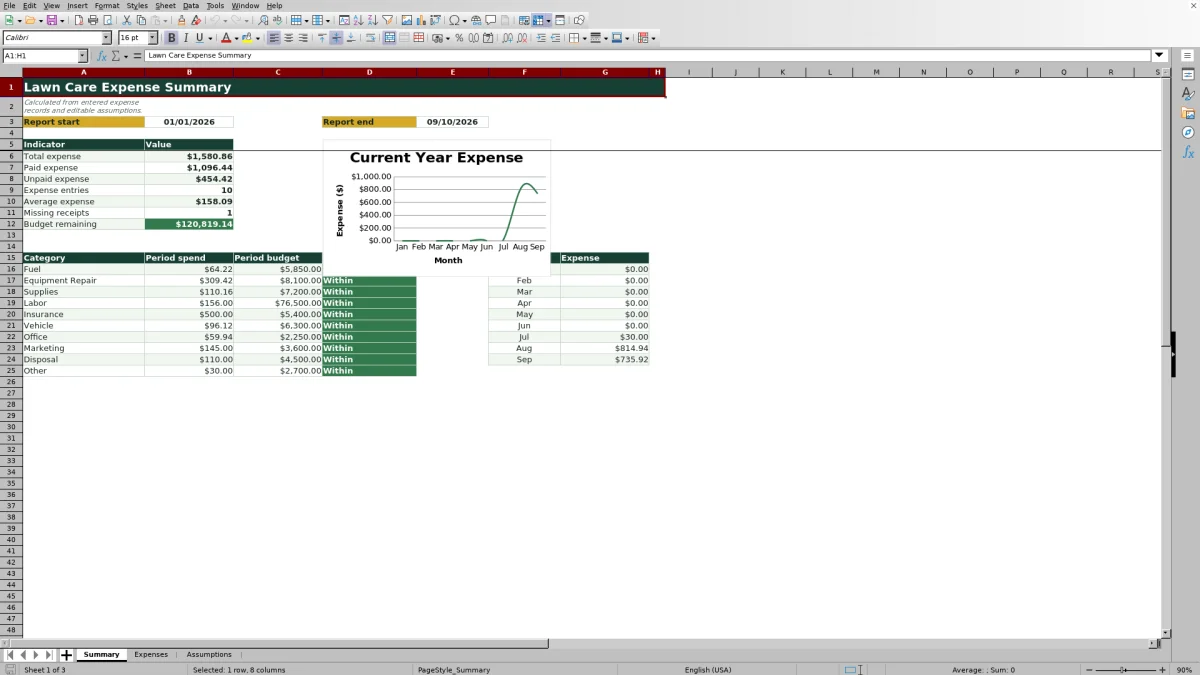
Operators can enter up to 100 transactions, calculate each total from quantity, unit cost, and fees, and then monitor paid, unpaid, and missing-receipt items. The Summary sheet also compares spending with category budgets and presents monthly expense totals for January through September 2026.
How this workbook can help
- Keeps vendors, expense categories, properties or jobs, payment details, equipment references, and receipts in one structured register.
- Calculates transaction amounts consistently from quantity, unit cost, and optional tax or fees.
- Shows paid expenses, unpaid expenses, average expense, missing receipts, and budget remaining for the selected reporting period.
- Helps operators identify categories that require review when report-period spending exceeds the corresponding prorated monthly budget.
What is in the file
How to get started
1. Set the reporting period and budgets
Open the Assumptions sheet, confirm the report start and end dates, and review the monthly budgets assigned to the 10 expense categories. Edit the yellow cells when the operating period, categories, or budgets change.
2. Enter each business expense
Use rows 5 through 104 on the Expenses sheet. Record the date, vendor, description, category, property or job, payment method, crew or equipment, quantity, unit, unit cost, tax or fees, status, receipt choice, and notes. Select available list values where dropdown validation is provided.
3. Verify the calculated amount and supporting record
Check the Total amount in column L, which calculates quantity multiplied by unit cost plus tax or fees. Confirm that the payment status is accurate and mark the receipt as Yes or No so unresolved documentation appears in the summary.
4. Review results and choose a follow-up action
Use the Summary sheet to inspect total, paid, and unpaid expenses, entry count, average expense, missing receipts, budget remaining, category checks, and monthly spending. Follow up on unpaid invoices, missing receipts, or categories marked Review.
The Day-to-Day Expense Control Situation
Lawn care operators often make several small purchases across routes, properties, crews, vehicles, and machines. When fuel, parts, materials, and service invoices are recorded in different places, it becomes difficult to determine what has been paid, which receipt is missing, or whether a category is running beyond budget. This workbook places those records in one dated and filterable expense register.
Record and Classify Each Cost
The Expenses sheet captures the vendor, description, category, property or job, payment method, crew or equipment, quantity, unit, unit cost, fees, payment status, receipt status, and notes. Dropdown lists standardize selected fields so Summary formulas can match category and status text. Column L calculates the transaction total as quantity multiplied by unit cost plus any entered tax or fees.
Practical Example: An Equipment Repair Invoice
Situation: A mower repair invoice covers one spindle-and-belt service priced at $286.50, with $22.92 in tax or fees. Action: The operator enters a quantity of 1, the unit cost, the fees, the Equipment Repair category, an Unpaid status, and No for the receipt. Result: The formula returns $309.42 and includes it in report-period expense totals. Interpretation: The amount contributes to Equipment Repair spending and appears in both unpaid expense and missing-receipt monitoring because of the selected values. Next decision: The operator can request the receipt, confirm the invoice, and decide whether the payment should be scheduled before reviewing the category budget again.
Interpret Budgets and Monthly Spending
For each category, the Summary sheet adds expenses dated within the selected reporting period. It multiplies the category's monthly budget by the inclusive number of calendar months in that period, then returns Review when spending exceeds the resulting period budget and Within otherwise. Budget remaining is the combined period budget minus total expense. The separate monthly series reports expenses from January through September 2026 and supplies the workbook's chart.
Comparison with Other Expense-Tracking Methods
The appropriate method depends on transaction volume, reporting needs, staff access, and whether the business also requires dispatching or invoicing functions.
| Method | Recording and calculation | Monitoring | More suitable when |
|---|---|---|---|
| This Excel workbook | Uses a structured 100-row register, dropdown lists, and calculated transaction totals. | Provides report-period indicators, category budget checks, receipt monitoring, and a monthly chart. | A single operator or small office wants repeatable expense control in one XLSX without adopting a broader service platform. |
| Paper form or manual ledger | Relies on handwritten records and manual arithmetic. | Requires totals, receipt checks, and budget comparisons to be prepared separately. | Transaction volume is very low and immediate electronic summaries are not needed. |
| Blank spreadsheet | Allows unrestricted design but requires the user to build and maintain fields, formulas, validation, and reports. | Depends entirely on the summaries and checks created by the operator. | The business needs a custom accounting model and has someone available to design and maintain it. |
| Dedicated field-service software | May combine mobile expense entry with scheduling, customer records, estimates, and invoicing, depending on the product. | May support multiuser workflows and integrations but can involve subscriptions, setup, and process changes. | Several crews need shared mobile workflows or the business also needs dispatching, customer management, and invoicing. |
The workbook functions as a complete operating method for entering expenses, calculating totals, checking documentation, and reviewing budgets; it is not a replacement for full accounting or field-service software when those broader functions are required.
Common Errors and Their Solutions
If Total amount stays blank, confirm that the date, category, quantity, and unit cost are all present and valid. If summary results are blank, correct missing report dates or an end date that precedes the start date. If a category or status is omitted from a total, select the exact dropdown value rather than typing a variation. If a receipt does not appear as missing, use No in the Receipt field. Avoid overwriting formulas in L5:L104; if more than 100 entries are needed, extend the formulas, validation, formatting, filters, and Summary ranges together or begin a new reporting file.
Turn the Results into the Next Operating Decision
Review the workbook on a consistent schedule, such as after route purchases or at the end of each week. First resolve unpaid items and missing receipts, then investigate categories marked Review and compare monthly movement with current operating activity. The next decision may be to obtain documentation, delay a discretionary purchase, adjust a monthly budget, question a vendor charge, or create a new file before the 100-row register is full.
Frequently asked questions
How does the Excel workbook calculate each expense total?
Column L multiplies Quantity by Unit cost, adds Tax or fees when entered, and rounds the result to two decimal places. The formula remains blank until the date, category, quantity, and unit cost are present.
How many expense records can the workbook hold?
The prepared entry area runs from row 5 through row 104 on the Expenses sheet, providing 100 transaction rows with formulas and validation.
Can I change the expense categories and monthly budgets?
Yes. The Assumptions sheet contains 10 category rows and their monthly budgets. The Summary sheet references those category names and budgets, so edits should be made carefully and used consistently in the expense register.
Why are the Summary results blank?
The report formulas return blank when the start or end date is missing or when the report end date is earlier than the start date. Individual transaction totals can also remain blank when a required date, category, quantity, or unit cost has not been entered.
How are unpaid expenses and missing receipts counted?
Unpaid expense includes report-period records whose Status is exactly Unpaid. Missing receipts counts populated expense records whose Receipt value is No. A Reimbursable status is not included in either the Paid or Unpaid indicator unless the workbook formulas are deliberately revised.
Editorial responsibility

Nadia KesslerEstimates, customers and job workflows

Ethan ReedWorkbook QA, crews and business controls