This Excel workbook helps lawn care and landscaping business operators reconcile card charges, receipts, categories, and statement totals. It connects transaction records to statements by statement end date and cardholder, then calculates differences and flags records that need review.
The XLSX includes Summary, Transactions, Statements, and Assumptions sheets. It supports up to 100 transaction rows and 100 statement rows, with fictional sample data that should be replaced or cleared before the workbook is used for an actual business.
How this workbook can help
- See whether entered transaction charges agree with card statement totals within a configurable tolerance.
- Find missing or pending receipts, receipt amount differences, and incomplete transaction records that require follow-up.
- Organize lawn care purchases by expense category, vendor, cardholder, and property or job.
- Use calculated summary indicators and statement statuses to decide which records to review before closing a statement period.
What is in the file
How to get started
1. Review the assumptions
Open the Assumptions sheet and confirm the match tolerance, allowed date range, amount limits, cardholders, expense categories, and receipt statuses. The included tolerance is $0.01, and the visible lists drive transaction and statement validation.
2. Enter each card statement
On the Statements sheet, add one row for each statement end date and cardholder. Enter the statement total and use Review Notes for any context that the formulas cannot capture.
3. Record charges and receipt details
On the Transactions sheet, enter the transaction ID, posted date, statement end date, cardholder, vendor, purchase or service, category, property or job, receipt status, and amounts. Keep the statement end date and cardholder consistent with the related statement row.
4. Resolve exceptions and confirm totals
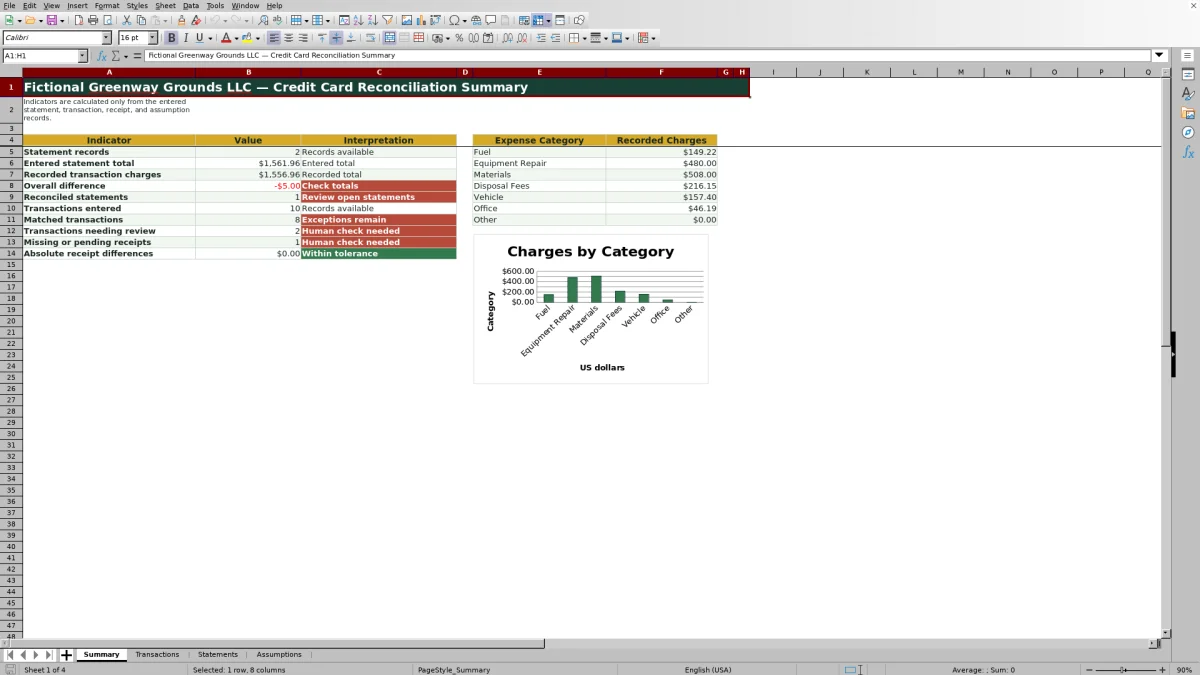
Review Amount Difference and Reconciliation Status on Transactions, then check Difference, Transaction Exceptions, and Reconciliation Status on Statements. Finish on Summary to assess overall totals, receipt issues, open reviews, and charges by category.
What the Excel Reconciliation Workbook Tracks
The workbook creates a linked reconciliation flow from individual card purchases to cardholder statements and then to a management summary. Transactions can include the vendor, purchase or service, expense category, property or job, receipt status, statement amount, receipt amount, and review notes. Statement rows use the statement end date and cardholder to total the related transaction charges.
This structure is useful when fuel, equipment repairs, materials, disposal fees, vehicle costs, office purchases, and other expenses are spread across crews, cardholders, and customer properties. It keeps the accounting review tied to the operational reason for each purchase without claiming to replace the original statement or receipt.
Practical Example: Reconciling a Fuel Charge
Situation: The fictional sample includes an August 31, 2026 statement for Avery Pine with a total of $952.36 and transaction FTX-2608-01 for $86.42 in mower and truck fuel. Action: The transaction is assigned to the same statement end date and cardholder, categorized as Fuel, marked Received, and given a receipt amount of $86.42. Result: The Amount Difference formula returns $0.00. Interpretation: Because the receipt difference is within the $0.01 tolerance, the receipt amounts agree; with the required fields completed and a matching statement record, the transaction can be treated as matched by the workbook's status logic. Next decision: Review the remaining Avery Pine transactions and confirm that their combined recorded charges agree with the $952.36 statement total and that no transaction exceptions remain.
Statement-Level Controls for Month-End Review
Each Statements row compares the entered Statement Total with Recorded Charges calculated from Transactions. Difference is calculated as recorded charges minus the statement total, while Transaction Exceptions counts related records that carry review-oriented statuses. A statement can be identified as Reconciled, Total Mismatch, Transaction Review, Duplicate Entry, or Review according to the entered data and formula tests.
This lets an operator separate two issues that can look similar: a statement may balance in total while still containing a missing receipt, or it may have complete receipts but fail to balance because a charge was omitted or assigned to the wrong statement end date or cardholder.
Receipt and Expense Category Review
Receipt Status accepts Received, Missing, Pending, or Not Required. When a receipt is marked Received and a receipt amount is entered, the workbook calculates Statement Amount minus Receipt Amount. The Summary sheet also reports missing or pending receipts and absolute receipt differences, helping the reviewer prioritize supporting-document follow-up.
Expense categories come from the Assumptions sheet: Fuel, Equipment Repair, Materials, Disposal Fees, Vehicle, Office, and Other. Summary totals use those configured labels, and the included chart displays recorded charges for the same seven category positions.
Common Errors and Practical Solutions
A transaction assigned to the wrong statement end date or cardholder may produce Statement Missing on Transactions or leave the intended statement with a total difference. Correct both linking fields so they match an entered statement row. A Missing or Pending receipt should be followed up with the cardholder and updated only when documentation is available. A Received receipt with a blank or different amount should be checked against the source document before changing the entry.
Duplicate statement rows for the same statement end date and cardholder can produce Duplicate Entry; retain one correct row and remove the unintended duplicate. A Total Mismatch means the absolute statement difference exceeds the tolerance, so look for omitted charges, duplicated transactions, credits, or incorrect amounts. Fix the source record rather than overriding the calculated status, and document unusual items in Review Notes.
Comparison: Excel Workbook, Manual Records, and Software
The following comparison treats this workbook as one complete operational method rather than comparing its worksheets with one another. The appropriate choice depends on transaction volume, existing systems, staff availability, and reporting needs; the table describes method fit without making an unsupported superiority claim.
| Method | How reconciliation is handled | Key limitation | More suitable when |
|---|---|---|---|
| This Excel workbook | Links transaction and statement entries by statement end date and cardholder, calculates differences, tracks receipts and categories, and summarizes exceptions. | Data entry is manual, formulas are prefilled for 100 transaction and 100 statement rows, and the file does not import bank feeds or receipt images. | More suitable when a small lawn care or landscaping operation wants a structured XLSX process and can review records manually. |
| Paper form or manual checklist | Staff compare printed statements and receipts by hand and mark completed items. | Totals, category summaries, and exception counts require separate calculation, and records are harder to search. | More suitable when transaction volume is very low and the business works primarily with physical records. |
| Blank spreadsheet | The operator designs columns, formulas, validation, and review rules from the beginning. | Controls and reconciliation logic depend entirely on the person building and maintaining the file. | More suitable when the business needs a custom structure that differs substantially from this workbook's statement, receipt, and category workflow. |
| Dedicated field-service or expense software | The software may combine purchasing workflows with mobile receipt capture, accounting integrations, permissions, or field operations, depending on the product. | It can involve subscription costs, setup, training, and features that exceed the needs of a small crew. | More suitable when transaction volume, multiple users, mobile documentation, integrations, or automated imports justify a managed system. |
Turning Summary Results Into the Next Decision
Start with the situation shown by Summary: compare entered statement totals with recorded transaction charges and note the overall difference. Act on missing receipts, pending receipts, unmatched records, and statements that are not reconciled. The result should be a smaller exception list and statement differences within the configured tolerance.
Interpret a zero or in-tolerance total together with the transaction statuses rather than in isolation. If totals agree but receipt issues remain, continue document follow-up; if receipts are complete but totals differ, return to statement assignment and amount entry. The next decision is whether the period is ready for accounting review or whether named cardholders need to resolve specific exceptions.
Frequently asked questions
What does this lawn care credit card reconciliation Excel workbook reconcile?
It compares entered credit card statement totals with recorded transaction charges and also checks receipt status, receipt amounts, expense categories, statement links, and formula-generated exceptions.
How are transactions linked to a statement?
The formulas match Transactions to Statements using the Statement End date and Cardholder. Both values should correspond to an entered statement row.
What does the match tolerance control?
The Match Tolerance on Assumptions sets the maximum absolute receipt difference treated as matched. The included value is $0.01, and it can be edited carefully to reflect the business's review policy.
Can the workbook track credits and missing receipts?
Yes. The validated amount range allows negative values that can represent credits, and Receipt Status includes Missing and Pending. Those statuses are surfaced as transaction exceptions for review.
What should I do when a statement shows Total Mismatch?
Compare the statement total with its calculated recorded charges, then check for omitted or duplicated transactions, incorrect amounts, credits, and transactions assigned to the wrong statement end date or cardholder. Correct the source entry and retain explanatory details in Review Notes.
Editorial responsibility

Nadia KesslerEstimates, customers and job workflows

Ethan ReedWorkbook QA, crews and business controls