This landscaping balance sheet template is an Excel workbook for tracking a lawn care or landscaping company’s assets, liabilities, and owner equity by period. Enter account-level ending balances on the Balances sheet, assign each record a status, and allow only rows marked Included to flow into the financial summary.
The XLSX combines an editable account catalog, validated balance-entry fields, period selectors, financial indicators, review warnings, and a comparison chart. Landscaping business operators can use it to check whether the balance sheet reconciles, examine changes between two period ends, and identify records that require source-document review.
How this workbook can help
- Keep period-end account balances, classifications, statuses, and notes in one structured workbook.
- Compare selected reporting periods without rebuilding formulas for each month-end review.
- Identify duplicate account-period pairs, incomplete records, unmatched accounts, and balance differences that need attention.
- Review total assets, liabilities, owner equity, working capital, current ratio, and debt-to-assets results based on Included records.
What is in the file
How to get started
1. Configure the account catalog and controls
Open the Assumptions sheet and review the account names, statement groups, balance sheet sections, balance tolerance, permitted balance range, earliest and latest period ends, and Summary period choices. Update these entries to match the landscaping company’s chart of accounts and reporting schedule.
2. Enter each period-end balance
On the Balances sheet, use one row for each account and period. Add an entry ID, period end, account, signed ending balance, status, and optional note. The workbook looks up the statement group and balance sheet section from the account catalog.
3. Resolve warnings and set record status
Review highlighted duplicates, missing fields, and unmatched accounts. Mark a verified row Included when it should affect the Summary; leave unfinished work as Draft or use Excluded for a record that should not be counted.
4. Compare periods and decide what to review next
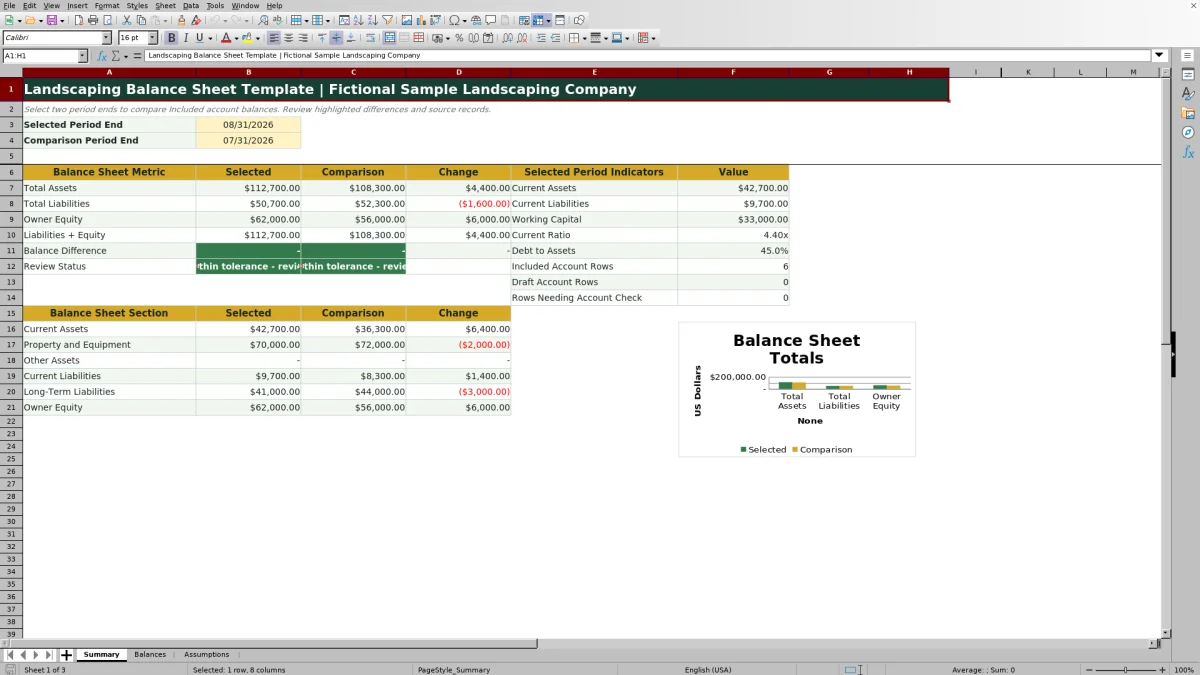
Select two period ends in cells B3 and B4 of the Summary sheet. Review assets, liabilities, owner equity, changes, ratios, section totals, record counts, the comparison chart, and the Balance Difference. Trace unexpected results back to the applicable Balances rows and source records.
How the Landscaping Balance Sheet Workbook Organizes Records
The workbook treats each Balances row as one account and one period. An operator enters the period end, chooses an account, records the ending balance, assigns a status, and adds a note when useful. Formulas retrieve the account’s statement group and balance sheet section from the Assumptions sheet, reducing the need to retype classifications.
The Summary sheet then aggregates Included balances for the two selected period ends. It reports assets, liabilities, owner equity, liabilities plus equity, balance difference, section totals, changes, and selected-period indicators. Draft and Excluded records remain available on the Balances sheet but do not enter these calculations.
Configure Accounts and Review Controls Before Entry
The Assumptions sheet contains the editable account catalog used by the workbook’s lookup formulas and account dropdown. Its sample landscaping accounts include Operating Cash, Accounts Receivable, Equipment, Net, Accounts Payable, Equipment Loan Payable, and Owner Capital. Each account is mapped to an Asset, Liability, or Owner Equity statement group and to a balance sheet section.
Review the balance tolerance, minimum and maximum permitted balances, date boundaries, and Summary period choices before entering company records. These settings support validation and reconciliation review, but they should reflect the operator’s actual reporting calendar, account structure, and bookkeeping practices.
Build a Reviewable Period-End Balance Record
Enter one signed ending balance for every account that belongs in a reporting period. Use the Notes field to record context such as the source ledger, a pending correction, or the reason a row remains Draft. The auto-filter can narrow the records by period, account, classification, or status, while frozen headers keep the field labels visible.
Before changing a record to Included, verify the period, account selection, ending balance, and supporting record. This workflow is useful for landscaping businesses with equipment financing, customer receivables, supplier payables, operating cash, and owner capital because the operator can review each account before it affects the reported totals.
Practical Example: Interpreting the Fictional August Balances
Situation: A landscaping company owner is closing August 2026 and wants to compare that month-end position with July 2026.
Action: Assuming the six visible fictional August records are the complete Included set, the owner selects August 31 as the selected period and July 31 as the comparison period, then reviews the August balances: $28,500 of Operating Cash, $14,200 of Accounts Receivable, $70,000 of Equipment, Net, $9,700 of Accounts Payable, $41,000 of Equipment Loan Payable, and $62,000 of Owner Capital.
Result: Total assets are $112,700. Total liabilities are $50,700, and liabilities plus owner equity are also $112,700, producing a zero balance difference. Current assets are $42,700, current liabilities are $9,700, working capital is $33,000, the current ratio is approximately 4.40x, and debt to assets is approximately 45.0%.
Interpretation: The fictional records reconcile, and current assets exceed current liabilities. That does not by itself confirm cash availability or explain account quality; receivable collectibility, equipment valuation, loan terms, and the completeness of source records still require review.
Next decision: Compare the July values and changes, investigate the accounts responsible for significant movement, and decide whether any August balance needs correction, documentation, or follow-up before the reporting period is finalized.
Common Entry Errors and Solutions
The workbook highlights several conditions for human review. An unmatched account can cause the classification cells to display Check account; select an account from the available list or update its mapping on the Assumptions sheet. If the same account and period appear more than once, confirm whether the records are duplicates and retain or correct the appropriate row.
When required inputs are missing, complete the period, account, balance, or status before relying on the Summary. If a valid record does not appear in totals, confirm that its status is Included rather than Draft or Excluded and that its period matches the selected date. If the balance difference exceeds the configured tolerance, compare assets with liabilities plus owner equity and verify the signed balances, classifications, and source records. Blank indicators can also mean that the required Included data is unavailable or that a denominator, such as current liabilities, is zero.
Comparison With Paper, Blank Spreadsheets, and Field-Service Software
The Excel workbook is one complete operational method: configure accounts and controls on Assumptions, enter and review records on Balances, and analyze two periods on Summary. The alternatives below may be more suitable when a different operating condition applies.
| Method | How the work is handled | More suitable when | Practical trade-off |
|---|---|---|---|
| This Excel workbook | Uses an account catalog, validated entries, record statuses, formula-driven totals, indicators, review flags, and two-period comparison in one XLSX. | More suitable when a lawn care or landscaping operator wants a reusable period-end process in Excel and can maintain account-level balances. | The operator still needs to verify source records, classifications, sign conventions, and accounting treatment. |
| Paper form or manual worksheet | Records balances by hand and requires totals, ratios, duplicate checks, and comparisons to be calculated manually. | More suitable when the review is a small, one-time exercise and no computer is available. | Corrections, repeated reporting, and audit trails can require more manual work. |
| Blank spreadsheet | Starts without predefined fields, validation, account mappings, status controls, or summary formulas. | More suitable when the operator needs a highly customized structure and has the spreadsheet skills to build and maintain every control. | Formula design, testing, error checks, and period comparisons remain the user’s responsibility. |
| Dedicated field-service software | May combine scheduling, dispatch, customer communication, invoicing, and financial integrations in a managed system. | More suitable when the landscaping company needs broader field operations in one platform and can support subscription, setup, and training requirements. | Balance sheet detail may still depend on accounting integrations, exports, or a separate bookkeeping system. |
The appropriate method depends on transaction volume, reporting frequency, staff skills, integration needs, and the level of accounting oversight available.
Use Period Changes to Guide the Next Review
The Summary sheet places selected-period and comparison-period results side by side and calculates the change. Its chart compares total assets, total liabilities, and owner equity, while the section rows provide additional detail. These views can show where the financial position moved, but they do not identify the business cause without a review of account records and notes.
For example, a change in assets could arise from operating cash, accounts receivable, or equipment balances. A change in liabilities could involve supplier payables or equipment financing. After identifying the affected category, filter the Balances sheet by period and account, inspect supporting records, and decide whether the movement is expected, needs correction, or should affect the next cash, collection, financing, or purchasing decision.
Frequently asked questions
Which balance rows appear on the Summary sheet?
Only Balances rows marked Included are aggregated into the Summary. Draft and Excluded records remain in the workbook for review but do not affect the reported totals or indicators.
How do I compare two reporting periods?
Maintain the permitted period choices on the Assumptions sheet, then select the desired period ends in cells B3 and B4 of the Summary sheet. The workbook displays each period’s totals and calculates the change when the required data is available.
What happens when an account is not in the catalog?
The lookup formulas in the Balances sheet can return Check account in the classification fields. Select a listed account or add and classify the account on the Assumptions sheet, then verify that the balance row updates correctly.
Why are some Summary values blank?
A value may remain blank when no Included rows exist for the selected period or when a required input is unavailable. A ratio may also remain blank when its required totals are missing or its denominator is zero. Confirm the selected dates, row statuses, account mappings, and balances.
Does this Excel template replace bookkeeping or accounting review?
No. The workbook organizes balances, performs formula-based calculations, and supports period-end review, but the operator remains responsible for complete source records, appropriate classifications, consistent sign conventions, and professional accounting advice when needed.
Editorial responsibility

Nadia KesslerEstimates, customers and job workflows

Ethan ReedWorkbook QA, crews and business controls