This Excel workbook provides lawn care and landscaping operators with a structured register for recurring service contracts. It tracks customers, properties, services, contract terms, annual amounts, account owners, notice periods, next actions, and renewal statuses.
Formula-driven dates support renewal timing by calculating when each notice window opens, how many days remain before expiration, and which records need review. A separate summary reports contract counts and annual values, while editable assumptions let operators adjust planning horizons and approved list choices.
How this workbook can help
- See upcoming renewal windows and expiration risks without calculating notice dates manually.
- Keep customer, property, service, contract value, ownership, and follow-up details in one register.
- Review tracked annual value, value due within the selected horizon, renewed contracts, and expired open contracts from a central summary.
- Standardize common entries with validated choices for services, contract terms, account owners, and renewal statuses.
What is in the file
How to get started
1. Review the timing and list settings
Open the Assumptions sheet and confirm the 90-day summary horizon, 30-day urgent-expiration threshold, 365-day maximum notice period, accepted date range, and dropdown choices. Adjust these entries to match the operation's renewal process.
2. Enter each service contract
Use one row per agreement on the Contracts sheet. Enter a contract ID, customer, property, primary service, start and end dates, term, annual amount, account owner, renewal status, notice days, and next action date.
3. Review calculated timing and alerts
Check Window Opens, Days to Expiration, and Review Alert. These formula columns identify missing information and flag timing conditions such as an open renewal window, a passed action date, an approaching expiration, or an expired contract requiring human review.
4. Make the next renewal decision
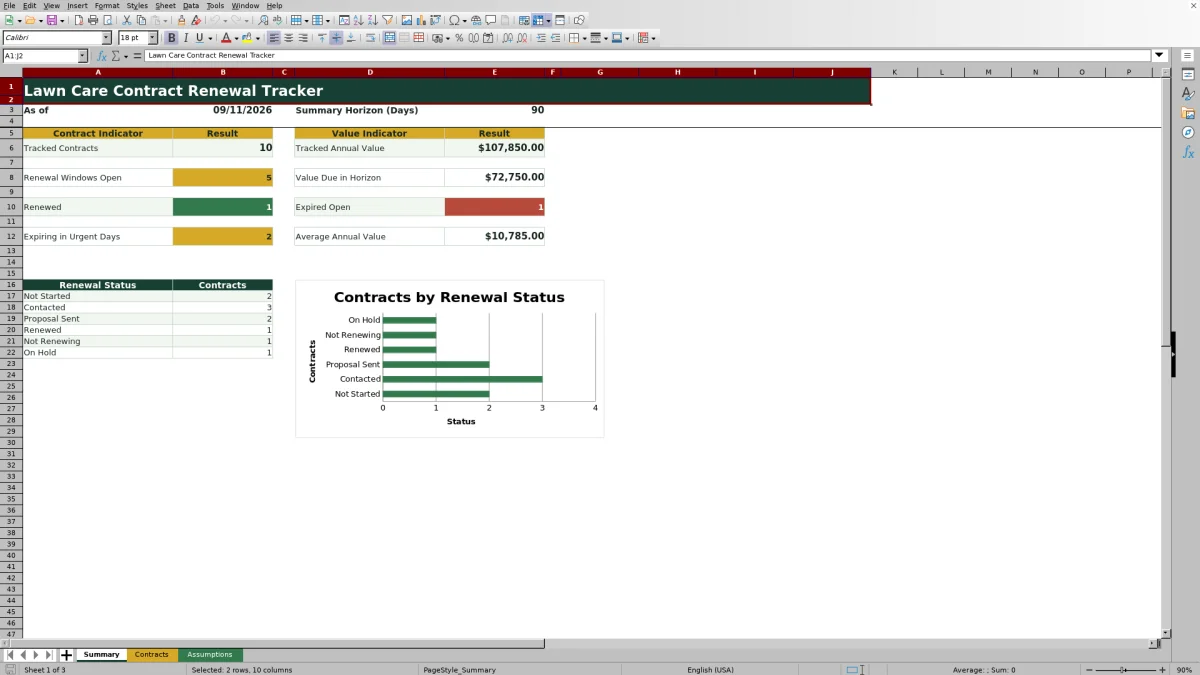
Use the Summary sheet to review counts, annual values, urgent expirations, and renewal-status distribution. Return to the filtered contract register to assign follow-up work, update the next action date, or change the renewal status after a customer decision.
What the Lawn Care Contract Renewal Tracker Covers
The workbook organizes recurring lawn care and landscaping agreements around the information needed for renewal follow-up. Each record can include the customer, serviced property, primary service, agreement dates, contract term, annual amount, responsible account owner, current renewal status, required notice period, and next action date.
The workbook has three worksheets. Contracts serves as the operational register, Summary aggregates contract counts and values, and Assumptions stores timing settings and approved list choices. Together, they support a repeatable process from contract entry through review and renewal disposition.
How Renewal Windows and Alerts Work
Window Opens subtracts Notice Days from the contract End Date. Days to Expiration subtracts the current date from the End Date, so the displayed result changes as time passes. Review Alert evaluates contract status, required fields, expiration timing, and the next action date to provide a prompt for human review.
The Summary sheet also uses the current date. It counts open renewal windows, identifies contracts expiring within the urgent-day threshold, reports expired agreements that remain open, and totals annual value due within the selected summary horizon. Renewed and Not Renewing records are excluded from applicable open-renewal calculations.
Contract Information and Controlled Entries
The register provides validated lists for primary service, contract term, account owner, and renewal status. Included service choices cover weekly mowing, biweekly mowing, full grounds care, seasonal cleanup, mulch bed maintenance, shrub trimming, and irrigation inspection. Included statuses are Not Started, Contacted, Proposal Sent, Renewed, Not Renewing, and On Hold.
Annual Amount accepts nonnegative decimal values, Notice Days accepts whole numbers from zero through the maximum configured on Assumptions, and contract or action dates are limited by the accepted date range. Operators can edit the underlying choices and settings when their business uses different services, terms, owners, or planning thresholds.
Interpreted Practical Renewal Example
The following scenario follows the sequence situation → action → result → interpretation → next decision. Situation: The fictional Cedar Lantern HOA agreement has an annual amount of $18,400, an end date of September 26, 2026, 60 notice days, and a Proposal Sent status. Its calculated renewal window opens July 28, 2026.
Action: Assume the operator reviews the workbook on August 1, 2026 and checks that contract row. The end date is 56 days away, the renewal window is already open, and the next recorded action is September 10.
Result: Because the contract is neither Renewed nor Not Renewing, the open-window count should include it. Its $18,400 annual amount should also be included in value due within the default 90-day horizon.
Interpretation: A proposal is already in progress, but the scheduled September 10 follow-up occurs only 16 days before expiration. The tracker does not decide whether that interval satisfies the signed agreement or the operator's sales process.
Next decision: The account owner can move the next action earlier, keep the date with a documented reason, or update the status after the customer responds. This turns the calculated timing into a specific human follow-up decision.
Common Entry Errors and Solutions
Accurate summary results depend on complete and consistent contract rows. Use these checks when a count, value, or alert does not look correct.
- If a contract is missing from summary counts, confirm that Contract ID is populated. Summary contract counts and value calculations use that field to identify tracked records.
- If Window Opens is blank, confirm that both End Date and Notice Days are present. The formula requires both values.
- If Review Alert says that fields are missing, check End Date, Notice Days, and Renewal Status before treating the record as ready for timing review.
- If a status is inconsistent, select an approved value from the Renewal Status dropdown rather than typing a variation.
- If a calculated cell in Window Opens, Days to Expiration, or Review Alert was overwritten, restore its row formula from an adjacent intact formula row and then verify the referenced row numbers.
- If a date is rejected, compare it with the earliest and latest accepted contract dates on Assumptions and revise the setting only when the broader range is intentional.
Comparison With Manual and Software Alternatives
The workbook is one complete operational method: maintain contract records, calculate renewal timing, review summary indicators, filter exceptions, and record the next action. The right alternative depends on contract volume, staff coordination, field operations, and the amount of automation required.
| Method | More suitable when | Operational trade-off |
|---|---|---|
| This Excel renewal tracker | A lawn care business needs a structured register for up to 100 contracts, formula-driven renewal dates, standardized statuses, annual-value reporting, and a summary view without adopting a larger platform. | Someone must maintain the file, review alerts, protect formula columns, and coordinate access when several employees are involved. |
| Paper form or whiteboard | A very small operator has only a few active agreements, works from one location, and benefits from immediate physical visibility. | Dates and totals require manual calculation, records are harder to filter, and historical changes can be difficult to trace. |
| Blank spreadsheet | The business needs an entirely custom layout or tracks terms that do not fit this workbook's fields and workflow. | The operator must design formulas, validation, alerts, filters, and reporting before the file provides comparable renewal oversight. |
| Dedicated field-service software | Multiple crews or office staff need shared mobile access, customer communications, scheduling, invoicing, permissions, or integrations in the same system. | Implementation, subscription cost, configuration, and staff training are typically greater than maintaining a focused XLSX file. |
Turning Summary Results Into Next Decisions
Start with open renewal windows and urgent expirations, then filter the Contracts sheet by account owner or renewal status. Compare the annual value at risk with available sales capacity and move high-priority follow-ups into an appropriate next action date.
Review expired open contracts separately because their status may no longer match the agreement's actual condition. Confirm the signed terms, customer communication, and service decision before changing the record to Renewed or Not Renewing. The workbook's formulas provide timing prompts; they do not interpret legal notice clauses or make customer decisions.
Frequently asked questions
How many contracts can the Excel tracker hold?
The Contracts sheet is preconfigured for 100 records in rows 6 through 105. Formula columns, validation, conditional formatting, and the Summary formulas reference that range.
Which fields are calculated automatically?
Window Opens, Days to Expiration, and Review Alert are calculated for each contract row. Summary counts and values are also formula-driven and use the current date where renewal timing is relevant.
What renewal statuses are included?
The included statuses are Not Started, Contacted, Proposal Sent, Renewed, Not Renewing, and On Hold. They are stored on the Assumptions sheet and used by the Contracts dropdown and Summary status counts.
Can the timing thresholds and dropdown choices be changed?
Yes. The Assumptions sheet contains the summary horizon, urgent-expiration threshold, maximum notice days, accepted contract-date limits, service choices, renewal statuses, contract terms, and account-owner choices. Changes should be reviewed carefully because formulas and validation reference these cells.
Do the alerts determine whether a contract has legally renewed or expired?
No. The alerts are date-based prompts for human review. An operator should check the signed agreement, notice provisions, customer communications, and actual service decision before updating a contract's status.
Editorial responsibility

Nadia KesslerEstimates, customers and job workflows

Ethan ReedWorkbook QA, crews and business controls