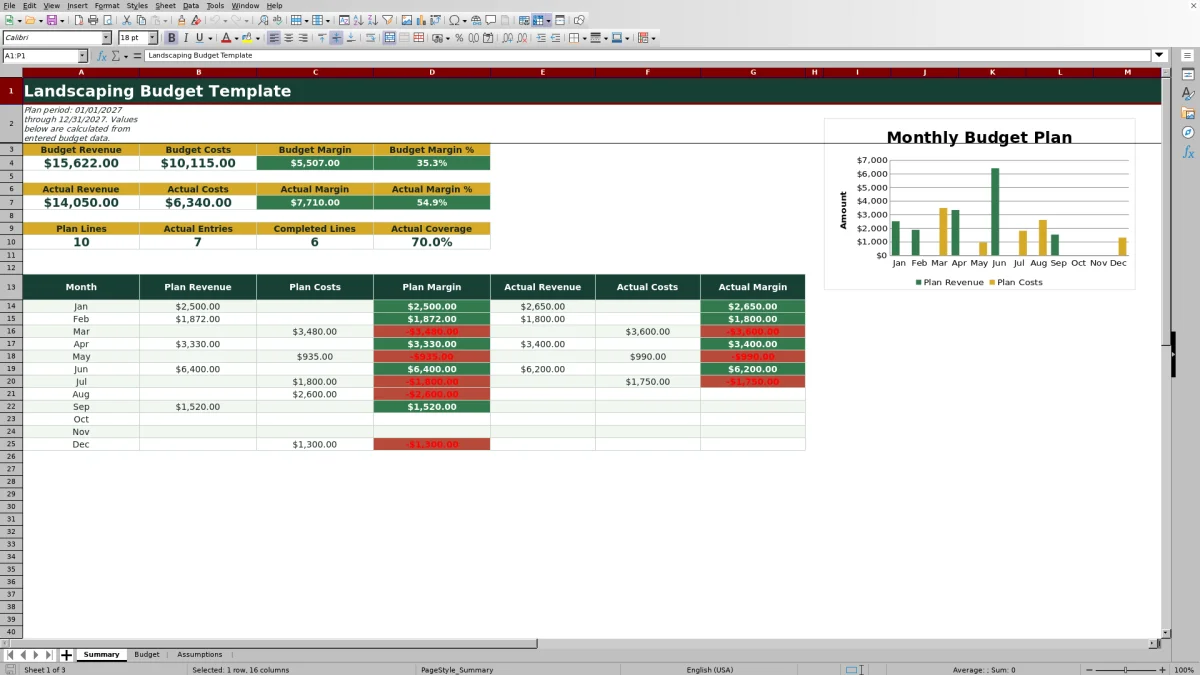
This Excel landscaping budget template helps lawn care and landscaping operators build an annual landscaping budget from dated revenue and cost lines. The XLSX calculates budget amounts from quantities and editable planning rates, then summarizes revenue, costs, margin, and margin percentage.
Use the workbook to plan work by customer or property, enter actual revenue and costs as positive values, and monitor favorable variance, completion status, monthly results, and actual-entry coverage. The included names and transactions are fictional examples that should be replaced with your own operating data.
How this workbook can help
- Connect annual revenue and cost goals to specific customers, properties, services, quantities, and dates.
- Compare budgeted amounts with actual results while treating positive variance consistently for both revenue and cost lines.
- Review annual margin, monthly performance, completed work, and actual-entry coverage from one summary.
- Adjust the plan year and category rates without rebuilding the workbook’s formulas or monthly reporting structure.
What is in the file
How to get started
1. Set the planning period
Open Assumptions and enter the plan year in cell B2. The workbook accepts years from 2020 through 2100 and calculates the first and last day of the selected year.
2. Review category assumptions
Update the yellow planning rates in D7:D18 for your own mowing, bed care, cleanup, enhancement, labor, equipment, fuel, and other configured categories. Keep the existing category labels, line types, and units so the lookup formulas continue to work.
3. Build the annual budget
On the Budget sheet, replace the fictional records and complete the editable budget lines. Enter a plan date, customer or property, category, quantity, status, and notes. Selecting a category fills in the line type, unit, and planning rate, while the budget amount is calculated automatically.
4. Record results and review performance
Enter actual amounts as positive numbers when work or costs are recorded. Use the Summary sheet to review annual totals, monthly results, favorable variance, completed lines, and actual coverage before adjusting rates, scheduling, or spending.
Situation: Turn an annual goal into operating detail
A landscaping company may know its annual revenue target but still need to connect that target to mowing visits, cleanup jobs, enhancements, labor, equipment, fuel, and other operating lines. This workbook provides a dated structure for up to 100 entries, allowing an operator to assign each amount to a customer or property, category, quantity, and status rather than managing only a single annual total.
Action: Build revenue and cost lines from planning rates
Start with the selected year and the 12 category assumptions. When a category is selected on the Budget sheet, formulas retrieve its revenue-or-cost classification, unit, and planning rate. Quantity multiplied by planning rate produces the budget amount. This method makes rate and volume assumptions visible, which helps an operator identify whether a projected change comes from pricing, visit count, labor hours, material volume, or job mix.
Result: Review margin and reporting coverage
The Summary sheet totals budget and actual revenue and costs within the selected plan period. It calculates margin as revenue minus costs and margin percentage as margin divided by revenue. It also reports plan lines, actual entries, completed lines, and actual coverage. The monthly view separates planned and actual results from January through December, while the chart compares monthly planned revenue with planned costs.
Interpretation: Practical landscaping budget example
Suppose a seasonal cleanup revenue line uses the included planning rate of $1,250 per job and a quantity of two. The budget amount is $2,500. If the operator enters actual revenue of $2,650, the workbook calculates a $150 favorable revenue variance, or 6% above that line’s plan. This result suggests the cleanup produced more revenue than budgeted, but it does not establish that the job earned a higher margin. The next decision is to review associated labor, equipment, fuel, and other cost lines before changing the cleanup rate or adding similar work.
Errors and solutions when maintaining the budget
Several common entry problems can interrupt useful reporting. A date outside the selected year may be rejected; correct the plan year or enter a date within the calculated start and end dates. A blank category leaves the line type, unit, rate, and budget amount blank; select one of the configured categories. A missing quantity also prevents the budget amount from calculating; enter a nonnegative quantity. Actual costs should not be entered as negative numbers because the cost classification already controls the variance calculation. Formula columns should not be replaced with manual values; restrict routine entry to the workbook’s designated editable cells.
Comparison: Excel workbook versus other budgeting methods
The workbook operates as one complete method: Assumptions supplies the year and rates, Budget records dated operating lines, and Summary converts those lines into annual and monthly results. The comparison below explains which method is more suitable when a particular operating condition applies.
| Method | More suitable when | Practical limitation |
|---|---|---|
| This Excel workbook | More suitable when an owner or manager needs structured annual planning, budget-versus-actual tracking, monthly margin review, and editable category rates without implementing a broader service platform. | It does not provide dispatching, invoicing, customer relationship management, or mobile work orders. |
| Paper forms or a manual ledger | More suitable when a very small operation needs to record a few isolated estimates and does not require automatic monthly rollups. | Totals, variance, coverage, and margin calculations require manual work and are harder to update consistently. |
| Blank spreadsheet | More suitable when the business needs a custom model and has someone available to design, test, and maintain formulas, validation, and reporting. | The category logic, variance treatment, input controls, and summary calculations must be created from scratch. |
| Dedicated field-service software | More suitable when budgeting must connect directly with dispatch, route management, mobile crews, estimates, invoices, or customer records. | Implementation, process changes, and ongoing software costs may be unnecessary for annual budget planning alone. |
Next decision: Use variance and coverage together
Review favorable variance only after checking whether actual coverage is complete. A favorable result based on a small number of actual entries may reflect missing costs or unfinished work rather than improved performance. If coverage is low, collect the missing actual amounts first. If coverage is high, investigate the categories and months driving the variance, then decide whether to adjust planning rates, quantities, scheduling, or the mix of revenue and cost lines for the next forecast.
Frequently asked questions
What does this Excel landscaping budget template track?
It tracks planned and actual revenue, costs, margin, favorable variance, work status, and monthly financial performance for one selected plan year.
How does the workbook calculate a budget amount?
Selecting a budget category retrieves its planning rate and unit from Assumptions. The Budget sheet then multiplies the entered quantity by that rate.
How should landscaping costs be entered?
Enter actual costs as positive amounts. The selected category identifies the line as a cost, and the workbook calculates favorable cost variance as budget amount minus actual amount.
Can the plan year and landscaping rates be changed?
Yes. The plan year accepts a whole number from 2020 through 2100, and planning rates can be edited in the yellow cells on the Assumptions sheet. The plan dates and monthly summary follow the selected year.
Why are some Summary results blank?
A result can remain blank when the plan dates are missing, no qualifying numeric budget or actual amounts exist in the selected period, or required Budget inputs such as category, quantity, or planning rate are incomplete.
Editorial responsibility

Nadia KesslerEstimates, customers and job workflows

Ethan ReedWorkbook QA, crews and business controls